PDF Extractor
Your PDF is processed in your browser – it is not uploaded.
Finds every picture stored inside the PDF (photos, logos, scans) and saves it in full resolution.
Rate this tool
How was your experience with the PDF Extractor?
Be the first to rate this tool
Share on Social Media:
PDF Extractor: Extract Text, Pages & Images from PDF
The PDF Extractor pulls exactly what you need out of a PDF: all the text, a set of pages as a new PDF, or every page as a high-quality PNG or JPG image.
Everything happens inside your browser, so confidential documents never leave your device.
Key Features of the PDF Extractor
- Extract all text with optional page markers
- Extract page ranges like 1-3, 5, 8 into one PDF
- Save each selected page as a separate PDF
- Convert pages to PNG or JPG at 72, 144 or 216 dpi
- Copy text or download it as .txt
- No upload – private and fast
How to Use the PDF Extractor
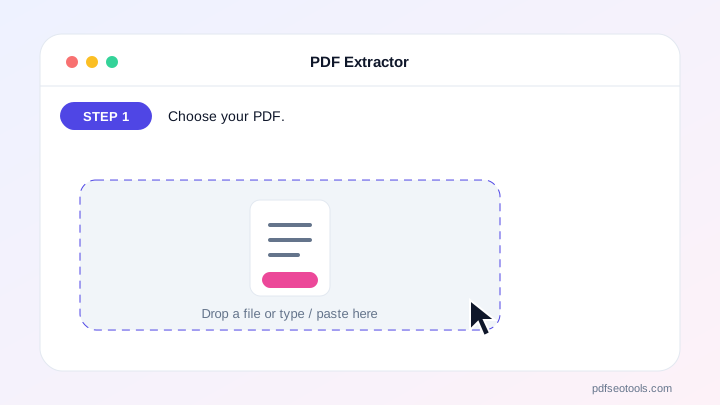
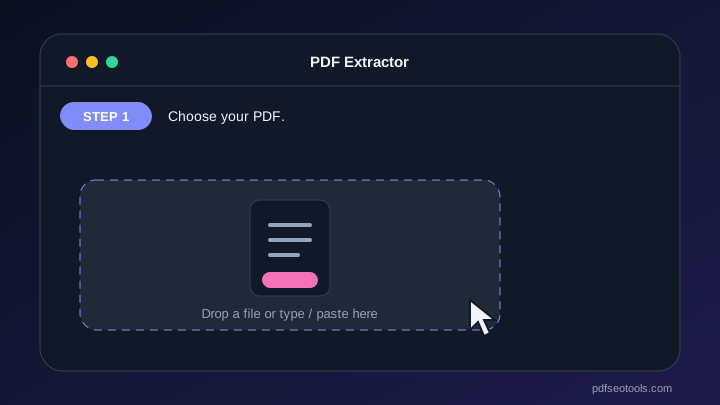
- Choose your PDF.
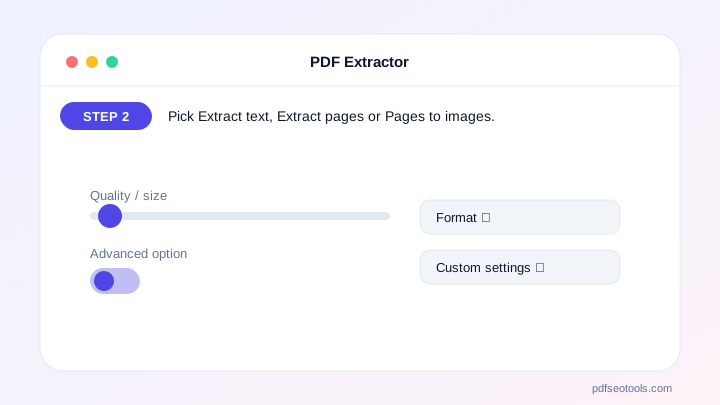
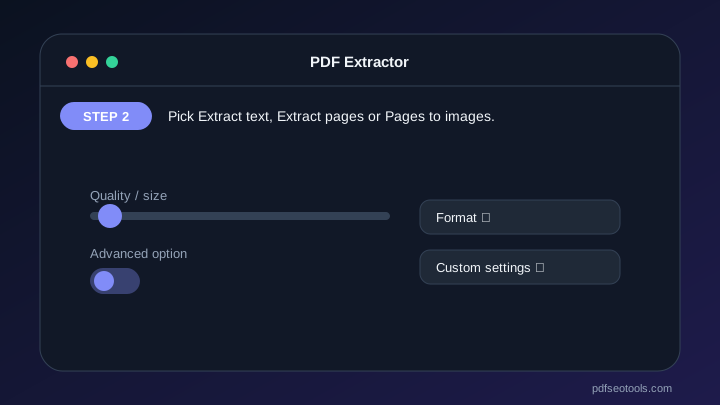
- Pick Extract text, Extract pages or Pages to images.
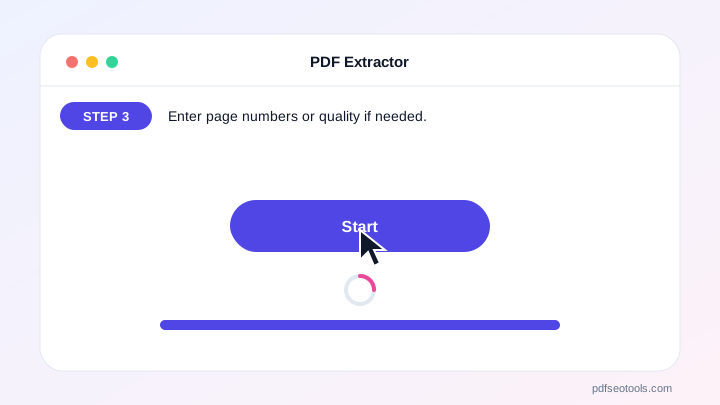
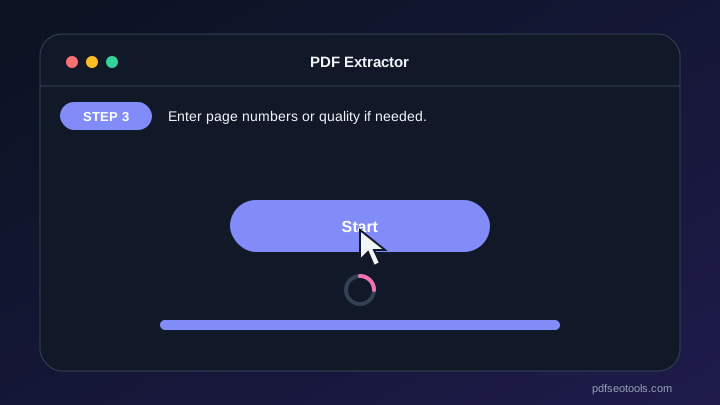
- Enter page numbers or quality if needed.
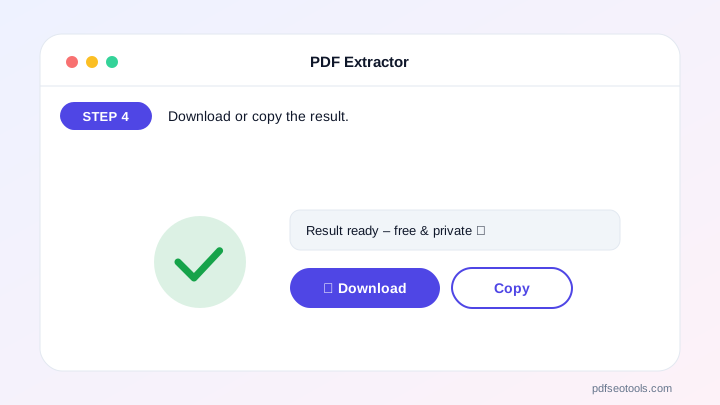
- Download or copy the result.
Why Choose PDF SEO Tools?
PDF SEO Tools is free, needs no sign-up and runs over a secure HTTPS connection. The PDF Extractor works on phone and computer, processes your files directly in your browser so they stay private, and is updated regularly with new features.
PDF Extractor: Frequently Asked Questions
Can I extract text from a scanned PDF?
Scanned PDFs contain pictures of text, so there is no text to extract. Use our Image to Text Converter (OCR) on the page images instead.
How do I extract only some pages?
Open the Extract pages tab and type page numbers such as 1-3, 7. You get them as one new PDF or as separate PDFs.
What image quality should I choose?
High (144 dpi) is good for screens; Very high (216 dpi) is better for printing.
Does it work with password-protected PDFs?
Unlock the PDF first with our Unlock PDF tool, then extract.
Is my PDF uploaded?
No. The PDF is read and processed in your browser only.