How to Convert PDF to Word Online for Free (Step-by-Step)

To convert pdf to word online for free, open the free PDF to Word on pdfseotools.com, click the upload area or drag and drop your file into the PDF to Word box, then run the tool and download or copy the result. It takes under a minute, works on mobile and desktop, and needs no sign-up.
What Is PDF to Word and Why Use It?
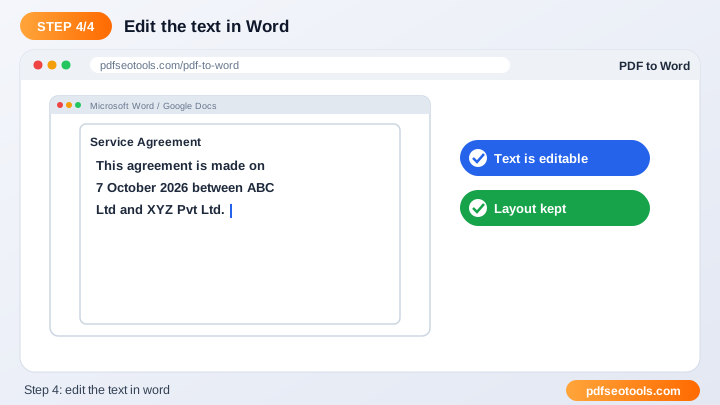
PDF to Word conversion extracts the text, layout and images from a PDF and rebuilds them in an editable DOCX file. It saves hours compared with copying and retyping.
Convert PDF files into editable Word (DOCX) documents online. Edit text, tables and images in Microsoft Word or Google Docs without retyping anything.
You can use it for tasks such as: editing old contracts and letters, updating a resume saved as pdf, reusing content from reports, correcting mistakes in pdf documents.
How to Convert PDF to Word Online for Free – Step-by-Step
Follow these 4 simple steps. Each step takes only a few seconds.
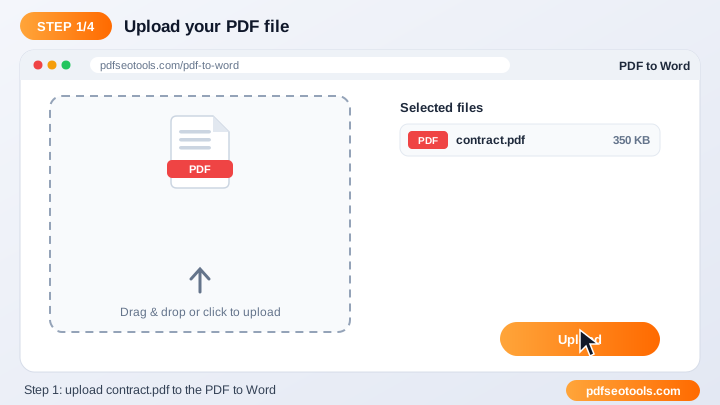
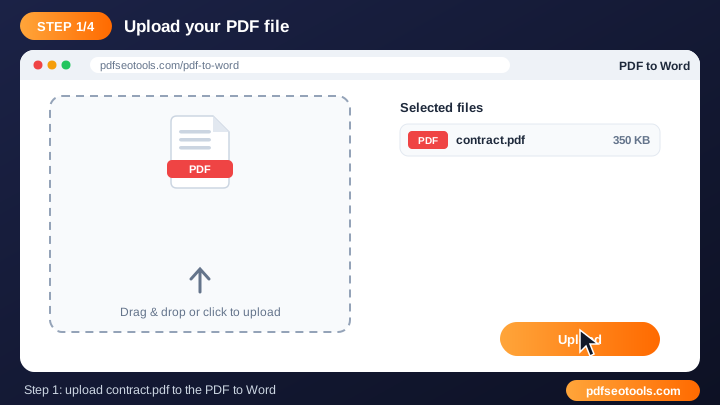
Step 1: Click the upload area or drag
Click the upload area or drag and drop your file into the PDF to Word box. Make sure you use the original, best-quality input you have – a clean source always gives a cleaner result.
Step 2: Check the file name
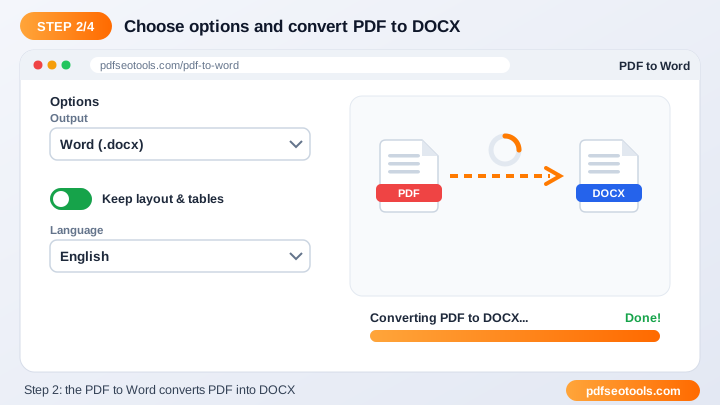
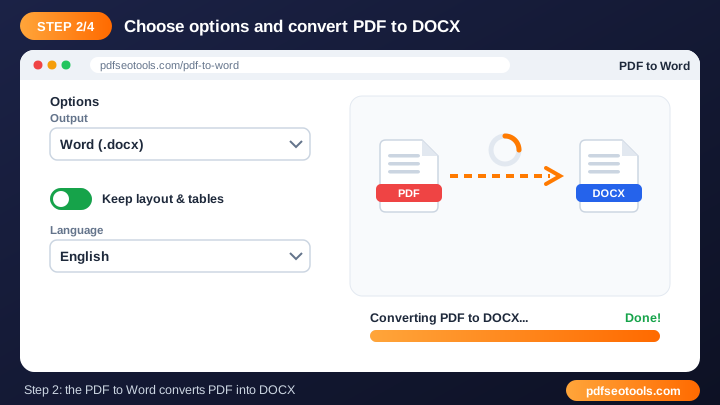
Check the file name and choose any available options (page order, quality, password or watermark text where offered). The default settings work for most people, so change them only if you need a specific size, format or style.
Step 3: Press the convert / process button
Press the convert / process button and wait a few seconds while our server handles the file. Processing usually takes a few seconds. Keep the browser tab open until the result appears.
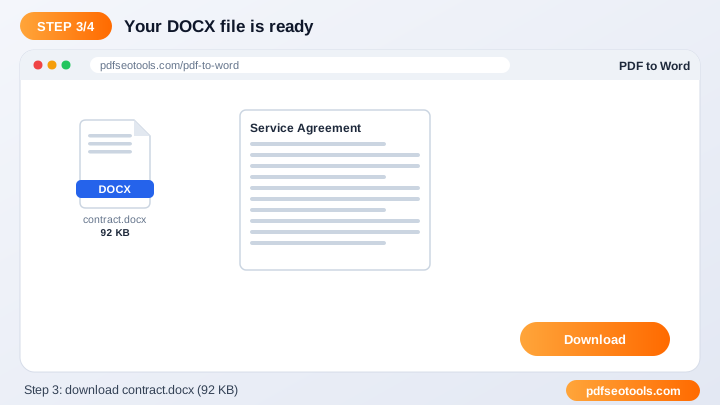
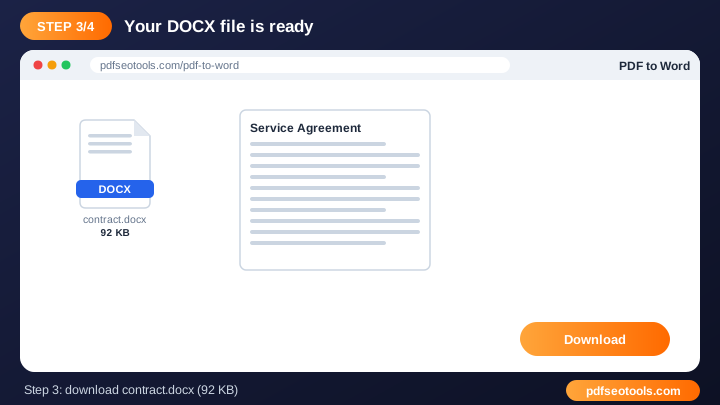
Step 4: Download the finished file to your device
Download the finished file to your device. Uploaded files are deleted automatically after processing. Save the result with a descriptive file name so you can find it later, and keep your original as a backup.
When the result is ready you can download or copy it immediately. Try the PDF to Word now and see how quickly it works.
Online PDF to Word vs Other Methods
The table below compares doing the job by hand, with desktop software and with a free online tool.
| Criteria | Manual method | Desktop software | PDF to Word |
|---|---|---|---|
| Cost | Your time | Often paid | Free |
| Installation | None | Required | None |
| Works on mobile | Difficult | Limited | Yes |
| Learning curve | High | Medium | Low |
| Speed | Slow | Medium | Seconds |
Key Features to Look For
- 100% free: Use the PDF to Word without paying, without a watermark from us and without creating an account.
- Fast cloud processing: Files are processed on our servers, so the speed does not depend on your phone or computer.
- Keeps original quality: Text, images, fonts and layout are preserved as closely as the source file allows.
- Works on every device: Windows, macOS, Linux, Android and iPhone – any modern browser is enough.
- Secure and private: Connections use HTTPS and uploaded files are removed from the server after processing.
- No software install: Everything runs online, so there is nothing to download or update.
Common Problems and How to Fix Them
Upload fails or stops
Check your internet connection and make sure the file is a valid, non-corrupted PDF or document under the size limit shown on the page.
The file is password protected
Remove the password first with our Unlock PDF tool (only for files you own), then try again.
Output looks different from the original
Use the original source file instead of a scanned copy and make sure fonts are embedded in the source document.
Mistakes to Avoid
- Uploading a password-protected file without unlocking it first.
- Using a blurry photo or low-resolution scan as the source.
- Closing the browser tab before the download finishes.
- Uploading a file larger than the limit shown on the page.
Tips for Best Results
- Use clear, original files – a sharp source always gives a cleaner result.
- Keep very large documents under the upload limit shown on the page, or split them first.
- Rename the downloaded file with a descriptive name so it is easy to find later.
- Always keep a backup copy of important original documents.
Related Tasks You Can Do
Word to PDF
Word to PDF conversion turns an editable Microsoft Word file into a fixed-layout PDF that looks the same on every phone, computer and printer. PDF is the preferred format for resumes, invoices, assignments and official forms because it cannot be changed accidentally. It is useful for sending a resume or cv to employers, submitting school and college assignments, sharing invoices, quotations and contracts. Try Word to PDF.
PDF to Excel
PDF to Excel detects tables in a PDF and places rows and columns into cells of an XLSX workbook. It is ideal for statements, price lists and reports. It is useful for analysing bank statements, converting price lists, reusing data from reports. Try PDF to Excel.
JPG to Word
JPG to Word uses OCR (Optical Character Recognition) to read text in an image and place it into a DOCX file that you can edit. It is useful for digitising printed pages, editing photographed notes, converting scanned letters. Try JPG to Word.
Worked Example
Example: a job portal accepts a resume only as a PDF under 1 MB. You write the resume in Word, convert it with the Word to PDF tool, check the size, and if it is too large, run it through the PDF Compressor. The final file keeps its formatting, opens on any device and meets the upload limit.
Quick Reference Table
| Format | Best for | Editable? |
|---|---|---|
| Sharing and printing final documents | No (fixed layout) | |
| DOCX (Word) | Writing and editing text | Yes |
| XLSX (Excel) | Tables and calculations | Yes |
| PPTX (PowerPoint) | Slides and presentations | Yes |
| JPG / PNG | Single pages as images | No |
Glossary of Key Terms
- Portable Document Format – a fixed-layout file that looks the same on every device.
- OCR
- Optical Character Recognition – turns text in scanned images into editable text.
- Compression
- Reducing file size by optimising images and removing unused data.
- Encryption
- Locking a file with a password so only authorised people can open it.
- Page orientation
- Portrait (tall) or landscape (wide) layout of a page.
Best Practices
Keep an editable source file (DOCX, XLSX or PPTX) for every important PDF, name files clearly (for example invoice-2026-10.pdf), and avoid scanning documents at very high resolution unless you need print quality. For sensitive documents, add a password and share it through a different channel than the file itself.
Key Takeaways
- To convert pdf to word online for free, open the free PDF to Word on pdfseotools.com, click the upload area or drag and drop your file into the PDF to Word box, then run the tool and download or copy the result.
- Use clear, original files – a sharp source always gives a cleaner result.
- Keep very large documents under the upload limit shown on the page, or split them first.
- Use the free PDF to Word to get the job done in seconds.
Related Free Tools
- Word to PDF – Convert DOC and DOCX files into professional PDF documents online in a few seconds.
- PDF to Excel – Extract tables from PDF files into editable Excel spreadsheets.
- JPG to Word – Extract text from JPG images and convert it into an editable Word document.
Explore all Free Online PDF Tools on pdfseotools.com.
Frequently Asked Questions
Is the layout preserved?
The converter keeps paragraphs, tables and images as close to the original as possible.
Can scanned PDFs be converted?
Scanned image-only PDFs may need OCR; text-based PDFs give the best results.
Can I open the file in Google Docs?
Yes, DOCX opens in Word, Google Docs and LibreOffice.
Is it free to use?
Yes. All tools mentioned in this guide are free on pdfseotools.com, with no sign-up and no installation.
Does it work on mobile?
Yes. The tools work in Chrome, Safari, Firefox and Edge on Android, iPhone, Windows and Mac.
Conclusion
How to Convert PDF to Word Online for Free is quick and easy with the right tool. Bookmark the PDF to Word and explore more PDF tools to finish your work faster – free, secure and on any device.