
8 Free Online Text Tools for Writers and Students

The best free text tools let you finish everyday tasks in your browser without installing software. Below are 8 free tools on pdfseotools.com, what each one does, who it is for and how to use it.


Top 8 Free Text Tools Compared
| # | Tool | Best for |
|---|---|---|
| 1 | Word Counter | Meeting essay word limits |
| 2 | Paraphrasing Tool | Rewriting essay paragraphs |
| 3 | Rewrite Article | Refreshing old blog posts |
| 4 | Case Converter | Fixing text typed in caps lock |
| 5 | Image to Text Converter | Copying text from screenshots |
| 6 | Comma Separator | Preparing SQL IN lists |
| 7 | Online Text Editor | Quick note taking |
| 8 | Word Combiner | Brainstorming business names |
1. Word Counter
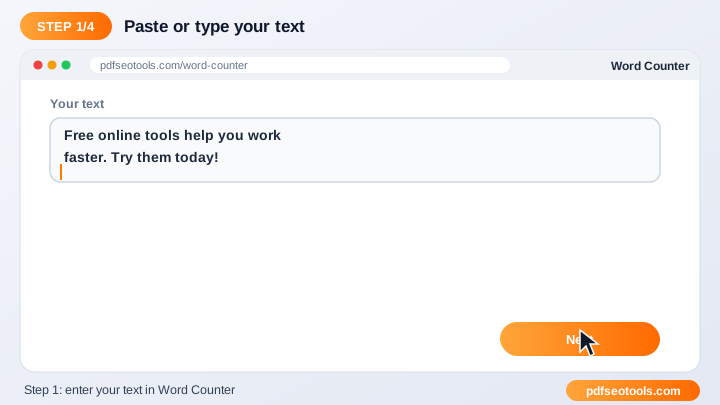
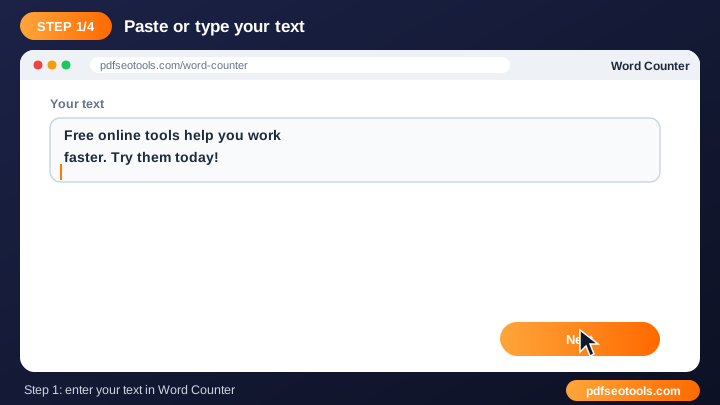
Count words, characters, sentences and paragraphs instantly. Check the length of essays, articles, meta descriptions and social posts.
Best for: meeting essay word limits, checking blog post length, writing meta titles and descriptions.
How to use it: Type or paste your text into the input box (or upload a file where supported). Try Word Counter free.
2. Paraphrasing Tool
Paraphrase sentences and paragraphs online to express ideas in new words. Improve clarity and avoid repetitive writing.
Best for: rewriting essay paragraphs, improving blog content, simplifying complex text.
How to use it: Type or paste your text into the input box (or upload a file where supported). Try Paraphrasing Tool free.
3. Rewrite Article
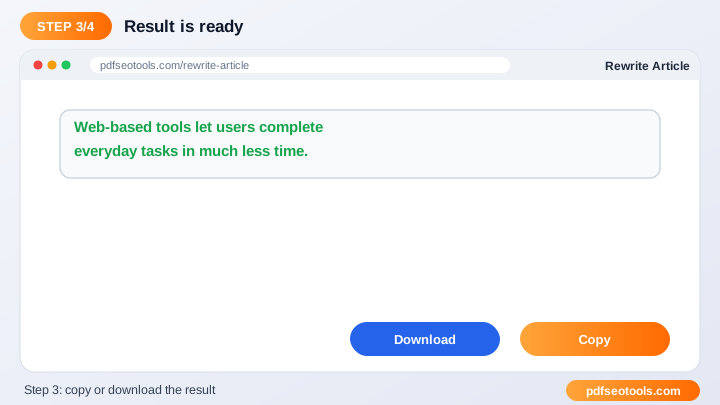
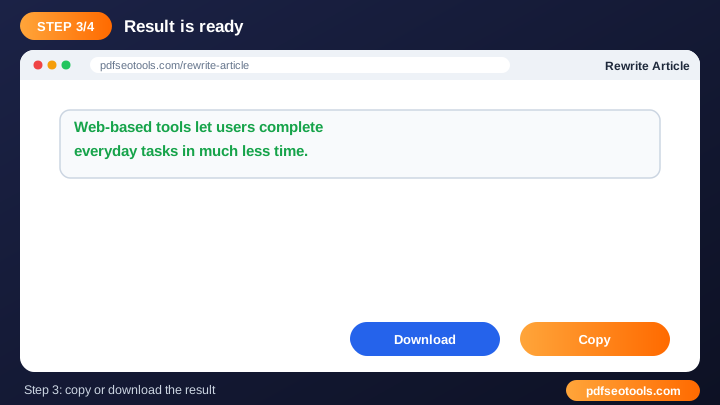
Rewrite articles, paragraphs and sentences online with fresh wording. Improve readability and create new versions of your content in seconds.
Best for: refreshing old blog posts, rewriting product descriptions, creating variations for social posts.
How to use it: Type or paste your text into the input box (or upload a file where supported). Try Rewrite Article free.
4. Case Converter
Change text to UPPERCASE, lowercase, Title Case, Sentence case and more in one click. Fix capitalisation without retyping.
Best for: fixing text typed in caps lock, formatting headings and titles, preparing data for spreadsheets.
How to use it: Type or paste your text into the input box (or upload a file where supported). Try Case Converter free.
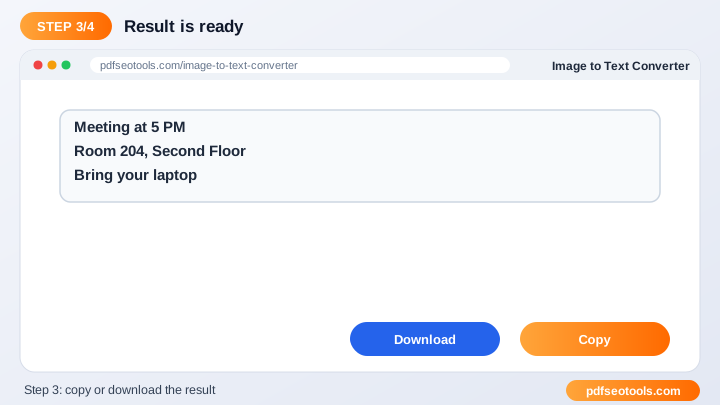
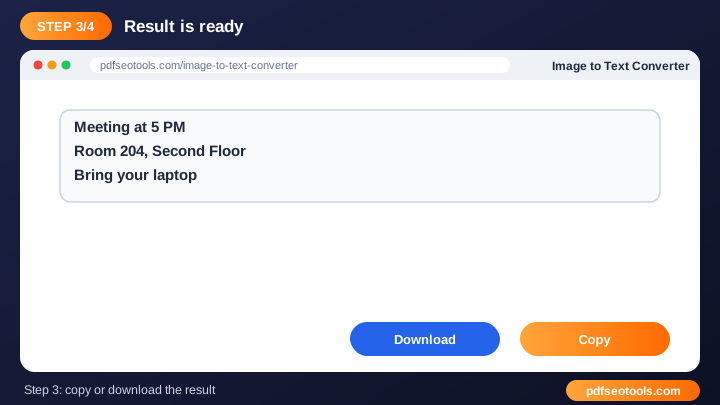
5. Image to Text Converter
Extract text from images online with OCR. Copy text from screenshots, scanned documents and photos in seconds.
Best for: copying text from screenshots, digitising documents, extracting quotes from images.
How to use it: Type or paste your text into the input box (or upload a file where supported). Try Image to Text Converter free.
6. Comma Separator
Convert lists into comma-separated values and back instantly. Format lines, columns and data for spreadsheets, SQL and code.
Best for: preparing sql in lists, formatting keyword lists, converting excel columns.
How to use it: Type or paste your text into the input box (or upload a file where supported). Try Comma Separator free.
7. Online Text Editor
Write and format text online with a simple, distraction-free editor. Draft notes, emails and articles without installing software.
Best for: quick note taking, drafting emails and posts, formatting text before publishing.
How to use it: Type or paste your text into the input box (or upload a file where supported). Try Online Text Editor free.
8. Word Combiner
Combine words to create unique names, domain ideas and keyword combinations. Generate creative combinations in one click.
Best for: brainstorming business names, finding domain ideas, creating keyword lists.
How to use it: Type or paste your text into the input box (or upload a file where supported). Try Word Combiner free.
How to Choose the Right Tool
Text tools save time when you write, edit and format content. Count words, change letter case, extract text from images and clean up lists in one click.
- Proofread the final text before publishing it.
- Break long content into smaller parts for more accurate processing.
- Keep a copy of your original text before making changes.
- Combine this tool with our Word Counter and Case Converter for complete editing.
Features Every Good Tool Should Have
- Instant results: Text is processed in seconds.
- Free to use: No sign-up or subscription is required for the tool.
- Simple interface: A clean layout that anyone can use without training.
- Copy and download: Move the result to your document, CMS or email quickly.
- Works everywhere: Use it on desktop, tablet or mobile.
- Privacy respected: Your text is not published or stored for public use.
Worked Example
Example: a meta description should stay under about 155 characters. Paste the draft into the Word Counter, check the character count, shorten it if needed, then use the Case Converter to fix any capitalisation before publishing.
Quick Reference Table
| Case style | Example | Common use |
|---|---|---|
| UPPERCASE | HOW TO USE SEO TOOLS | Warnings, buttons |
| lowercase | how to use seo tools | URLs, tags |
| Title Case | How To Use Seo Tools | Headings |
| Sentence case | How to use seo tools | Normal sentences |
Glossary of Key Terms
- Word count
- The number of words separated by spaces in a text.
- Character count
- The number of letters, numbers, spaces and symbols.
- Title case
- Capitalising the first letter of each major word.
- Paraphrasing
- Expressing the same meaning with different words.
- OCR
- Recognising printed text inside an image so it can be copied.
Best Practices
Write first, edit second: draft your text freely, then use tools to check length, case and repetition. Always proofread automatically rewritten text, and keep a copy of the original before making large changes.
How It Works Behind the Scenes
Your text is analysed character by character and word by word. The tool applies its rules – counting, converting, rewriting or recognising characters – and returns the processed text instantly so you can copy or download it.
Key Takeaways
- The best free text tools let you finish everyday tasks in your browser without installing software.
- Proofread the final text before publishing it.
- Break long content into smaller parts for more accurate processing.
- Use the free Word Counter to get the job done in seconds.
Related Free Tools
- Paraphrasing Tool – Paraphrase sentences and paragraphs online to express ideas in new words.
- Rewrite Article – Rewrite articles, paragraphs and sentences online with fresh wording.
- Case Converter – Change text to UPPERCASE, lowercase, Title Case, Sentence case and more in one click.
- Image to Text Converter – Extract text from images online with OCR.
Explore all Free Online Text Tools on pdfseotools.com.
Frequently Asked Questions
Does it count characters with spaces?
Yes, character counts are shown.
Is my text saved?
No, the text stays private.
How long should a blog post be?
Long enough to fully answer the topic – often 800–2000 words.
Is it free to use?
Yes. All tools mentioned in this guide are free on pdfseotools.com, with no sign-up and no installation.
Does it work on mobile?
Yes. The tools work in Chrome, Safari, Firefox and Edge on Android, iPhone, Windows and Mac.
Conclusion
8 Free Online Text Tools for Writers and Students is quick and easy with the right tool. Bookmark the Word Counter and explore more text tools to finish your work faster – free, secure and on any device.