Common PDF Problems and How to Fix Them Quickly

Most PDF tools problems come from a few simple causes: the wrong input, the wrong settings or a file or value that breaks a basic rule. This guide lists the most common problems, explains why they happen and shows how to fix each one in seconds.
Why These Problems Happen
When you upload a file, it is sent over an encrypted HTTPS connection to our conversion server. The server reads the document structure (pages, text, images and fonts), applies the operation you selected, writes a new file and gives you a download link. The temporary files are then deleted automatically.
Because every tool follows strict rules, a small mistake in the input or settings can produce an error or an unexpected result. The good news is that almost every problem has a quick fix.
Problems and Fixes at a Glance
| Problem | Fix |
|---|---|
| Upload fails or stops | Check your internet connection and make sure the file is a valid, non-corrupted PDF or document under the size limit shown on the page. |
| The file is password protected | Remove the password first with our Unlock PDF tool (only for files you own), then try again. |
| Output looks different from the original | Use the original source file instead of a scanned copy and make sure fonts are embedded in the source document. |
| Uploading a password-protected file without unlocking it first | Avoid this – see the tips below |
| Using a blurry photo or low-resolution scan as the source | Avoid this – see the tips below |
Problem 1: Upload fails or stops
Check your internet connection and make sure the file is a valid, non-corrupted PDF or document under the size limit shown on the page. If the problem continues, test with a small, simple input first, then try your full file or value again.
Problem 2: The file is password protected
Remove the password first with our Unlock PDF tool (only for files you own), then try again. If the problem continues, test with a small, simple input first, then try your full file or value again.
Problem 3: Output looks different from the original
Use the original source file instead of a scanned copy and make sure fonts are embedded in the source document. If the problem continues, test with a small, simple input first, then try your full file or value again.
Mistakes That Cause Most Errors
- Uploading a password-protected file without unlocking it first.
- Using a blurry photo or low-resolution scan as the source.
- Closing the browser tab before the download finishes.
- Uploading a file larger than the limit shown on the page.
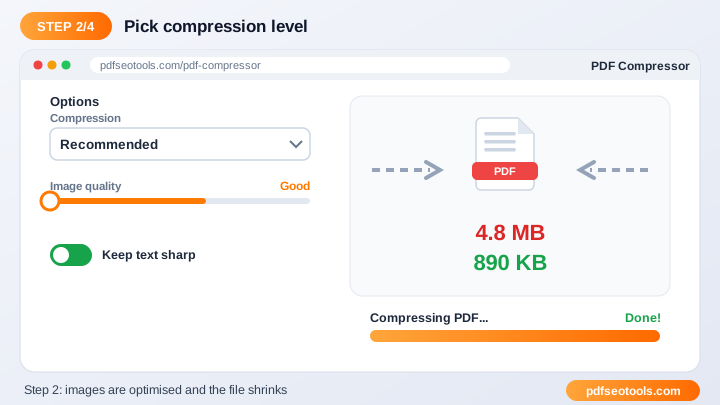
Use PDF Compressor to Check Your Work
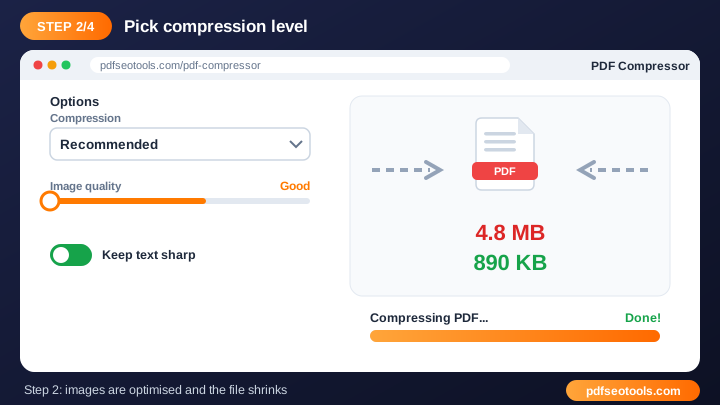
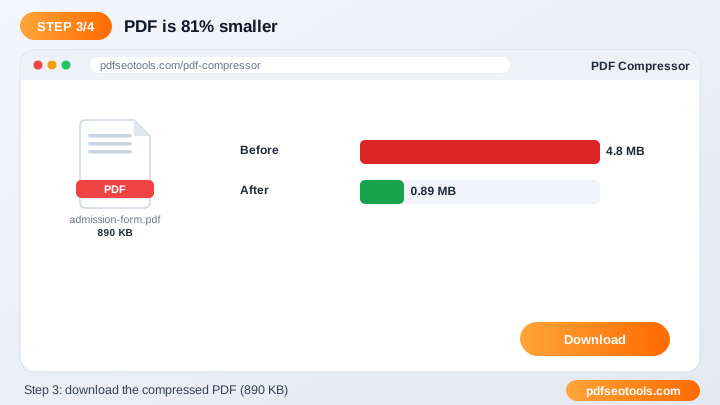
Reduce the size of PDF files online while keeping good quality. Make PDFs small enough for email attachments and upload limits on job and government portals. Open PDF Compressor.
- Click the upload area or drag and drop your file into the PDF Compressor box.
- Check the file name and choose any available options (page order, quality, password or watermark text where offered).
- Press the convert / process button and wait a few seconds while our server handles the file.
- Download the finished file to your device. Uploaded files are deleted automatically after processing.
Prevention Checklist
- Use clear, original files – a sharp source always gives a cleaner result.
- Keep very large documents under the upload limit shown on the page, or split them first.
- Rename the downloaded file with a descriptive name so it is easy to find later.
- Always keep a backup copy of important original documents.
Helpful Tools
- Unlock PDF – Remove the password from a PDF you own so it can be opened, printed and edited freely.
- Organize PDF – Rearrange, sort and reorder the pages of your PDF exactly the way you need.
- Remove PDF Pages – Delete unwanted pages from a PDF document quickly.
Related Tasks You Can Do
Unlock PDF
Unlocking removes the open password or restrictions from a PDF. It saves time when you regularly use your own protected files, such as e-statements, and do not want to type the password every time. It is useful for removing passwords from your own bank statements, allowing printing of protected files, making documents easier to merge or edit. Try Unlock PDF.
Organize PDF
Organizing a PDF means changing the sequence of its pages. This is useful when a scanner mixes pages up or when you want to place an important page at the front. It is useful for fixing scanned documents in the wrong order, moving a summary page to the beginning, preparing a presentation handout. Try Organize PDF.
Remove PDF Pages
Removing pages lets you drop blank pages, ads, duplicates or confidential sections before you share a document. It is useful for removing blank scanned pages, sharing only selected pages, deleting confidential sections. Try Remove PDF Pages.
Worked Example
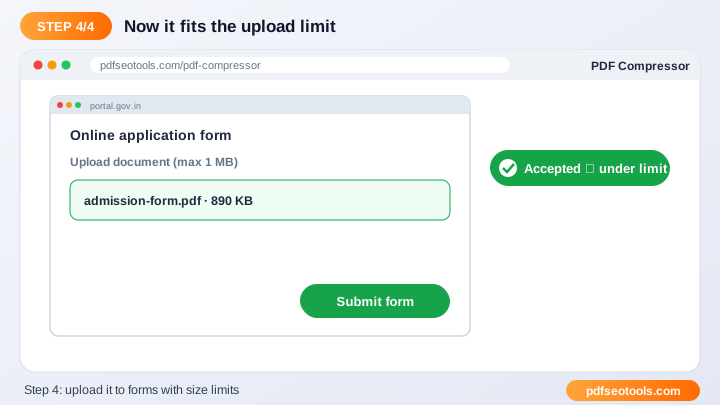
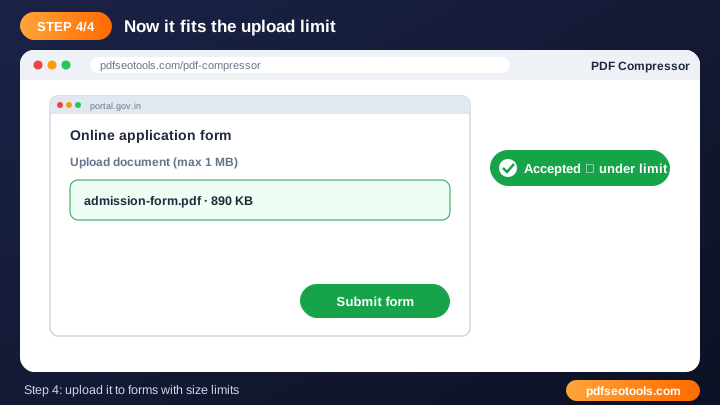
Example: a job portal accepts a resume only as a PDF under 1 MB. You write the resume in Word, convert it with the Word to PDF tool, check the size, and if it is too large, run it through the PDF Compressor. The final file keeps its formatting, opens on any device and meets the upload limit.
Quick Reference Table
| Format | Best for | Editable? |
|---|---|---|
| Sharing and printing final documents | No (fixed layout) | |
| DOCX (Word) | Writing and editing text | Yes |
| XLSX (Excel) | Tables and calculations | Yes |
| PPTX (PowerPoint) | Slides and presentations | Yes |
| JPG / PNG | Single pages as images | No |
Glossary of Key Terms
- Portable Document Format – a fixed-layout file that looks the same on every device.
- OCR
- Optical Character Recognition – turns text in scanned images into editable text.
- Compression
- Reducing file size by optimising images and removing unused data.
- Encryption
- Locking a file with a password so only authorised people can open it.
- Page orientation
- Portrait (tall) or landscape (wide) layout of a page.
Best Practices
Keep an editable source file (DOCX, XLSX or PPTX) for every important PDF, name files clearly (for example invoice-2026-10.pdf), and avoid scanning documents at very high resolution unless you need print quality. For sensitive documents, add a password and share it through a different channel than the file itself.
How It Works Behind the Scenes
When you upload a file, it is sent over an encrypted HTTPS connection to our conversion server. The server reads the document structure (pages, text, images and fonts), applies the operation you selected, writes a new file and gives you a download link. The temporary files are then deleted automatically.
Key Takeaways
- Most PDF tools problems come from a few simple causes: the wrong input, the wrong settings or a file or value that breaks a basic rule.
- Use clear, original files – a sharp source always gives a cleaner result.
- Keep very large documents under the upload limit shown on the page, or split them first.
- Use the free PDF Compressor to get the job done in seconds.
Related Free Tools
- Unlock PDF – Remove the password from a PDF you own so it can be opened, printed and edited freely.
- Organize PDF – Rearrange, sort and reorder the pages of your PDF exactly the way you need.
- Remove PDF Pages – Delete unwanted pages from a PDF document quickly.
Explore all Free Online PDF Tools on pdfseotools.com.
Frequently Asked Questions
How much smaller will my PDF be?
It depends on the content; image-heavy PDFs shrink the most.
Does compression reduce quality?
The tool balances size and quality so documents stay readable.
Can I compress scanned PDFs?
Yes, scanned PDFs often compress very well.
Is it free to use?
Yes. All tools mentioned in this guide are free on pdfseotools.com, with no sign-up and no installation.
Does it work on mobile?
Yes. The tools work in Chrome, Safari, Firefox and Edge on Android, iPhone, Windows and Mac.
Conclusion
Common PDF Problems and How to Fix Them Quickly is quick and easy with the right tool. Bookmark the PDF Compressor and explore more PDF tools to finish your work faster – free, secure and on any device.