 PNG to SVG
 JPG to SVG
 HEIC to JPG
 HEIC to PNG
 AVIF to JPG
 AVIF to PNG
SVG Converter
Convert images to and from SVG online. Create scalable vector graphics that look sharp at any size, from favicons to billboards. Free to use, private and fast – it works on any phone or computer with no sign-up.
Rate this tool
How was your experience with the SVG Converter?
Be the first to rate this tool
Share on Social Media:


Get Crisp Graphics That Scale to Any Size
Convert images to and from SVG online. Create scalable vector graphics that look sharp at any size, from favicons to billboards. SVG (Scalable Vector Graphics) stores shapes as code instead of pixels, so it never becomes blurry when resized. SVG files are light, SEO friendly and ideal for logos and icons.
How to Use the SVG Converter?
Using the SVG Converter has become a hassle-free task. Follow the simple steps shared below:
- Upload the image you want to turn into a vector or convert from SVG.
- Choose the output format.
- Press Convert and download the result.
- Copy, download or share your Image.
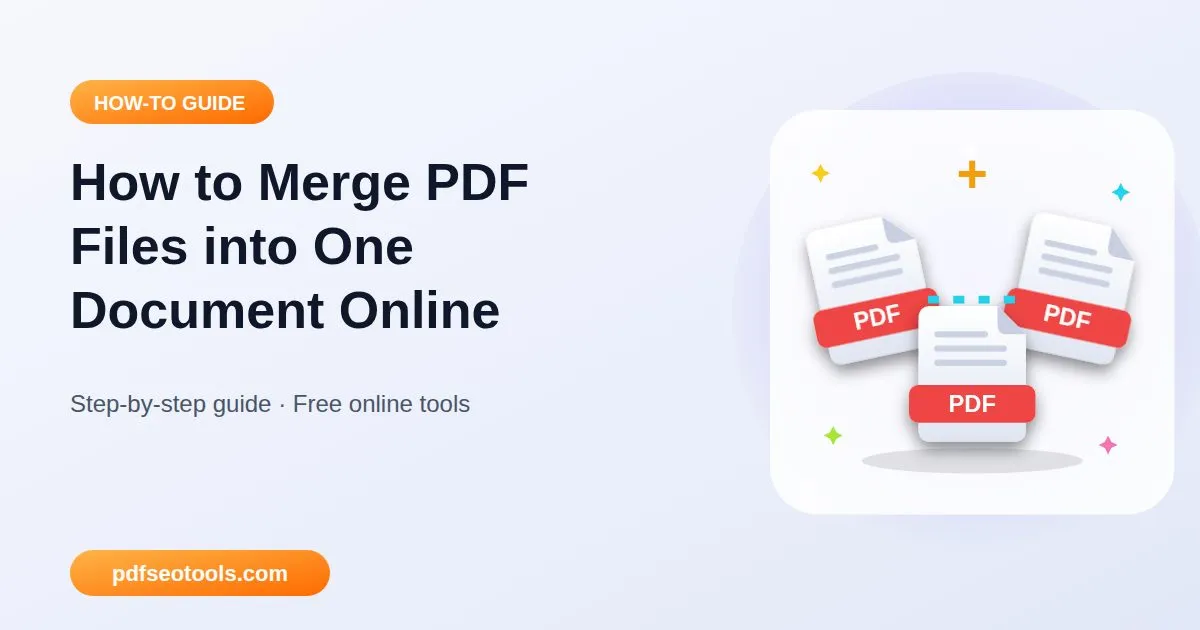
 Step 1
Upload any image
Upload the image you want to turn into a vector or convert from SVG.
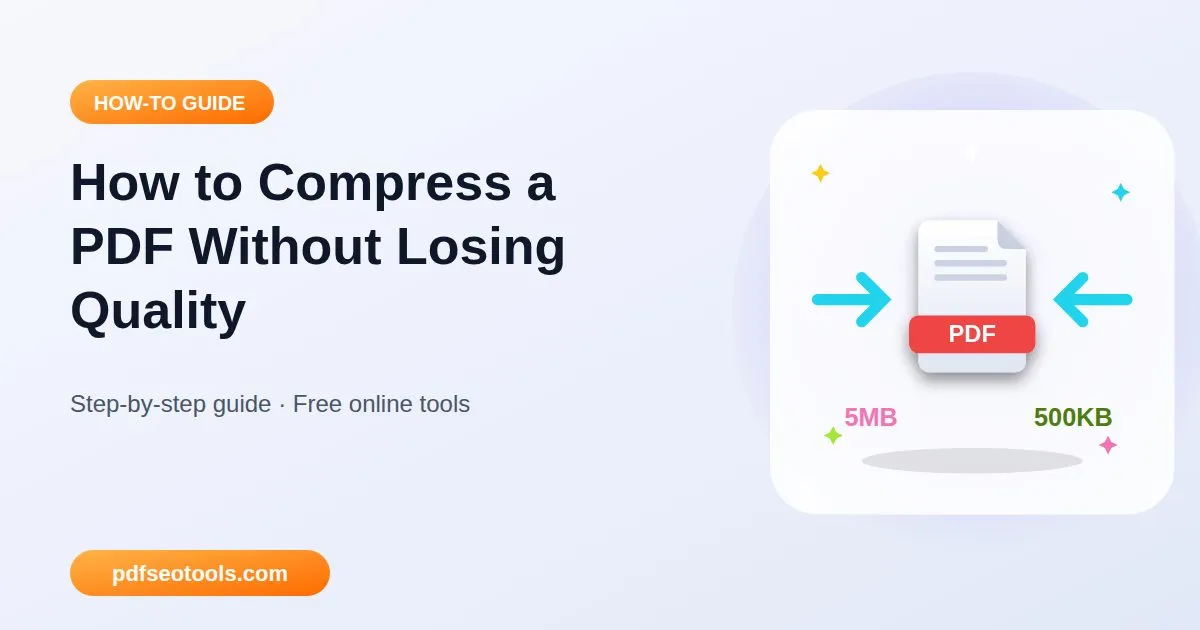
 Step 2
Trace shapes into vectors
Choose the output format.
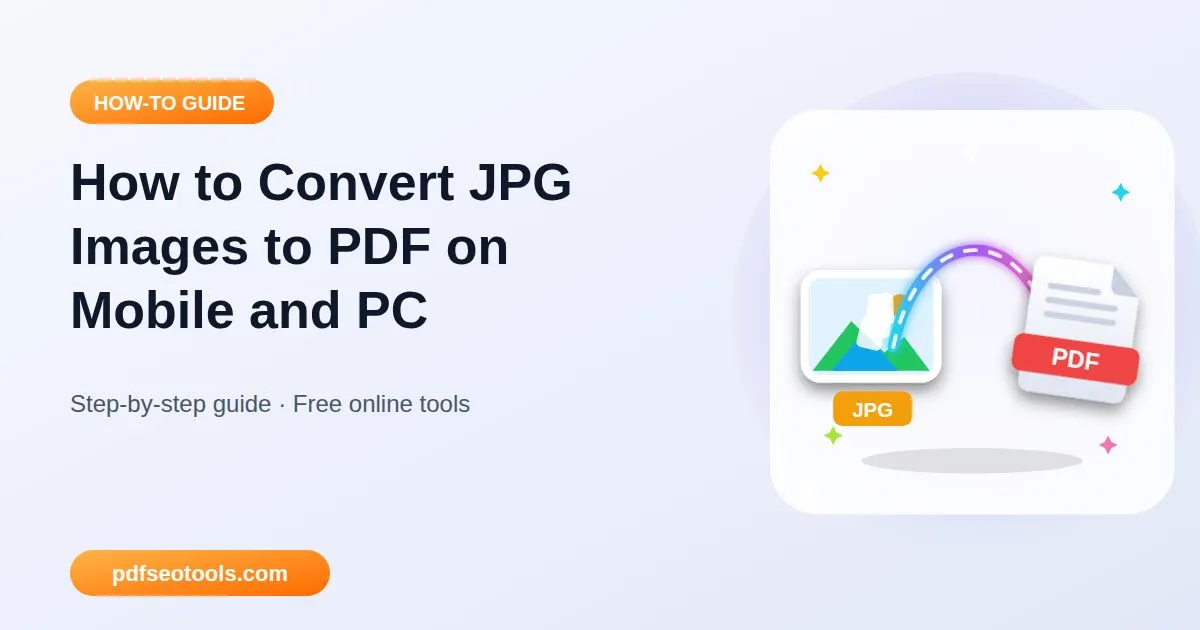
 Step 3
Your SVG is ready
Press Convert and download the result.
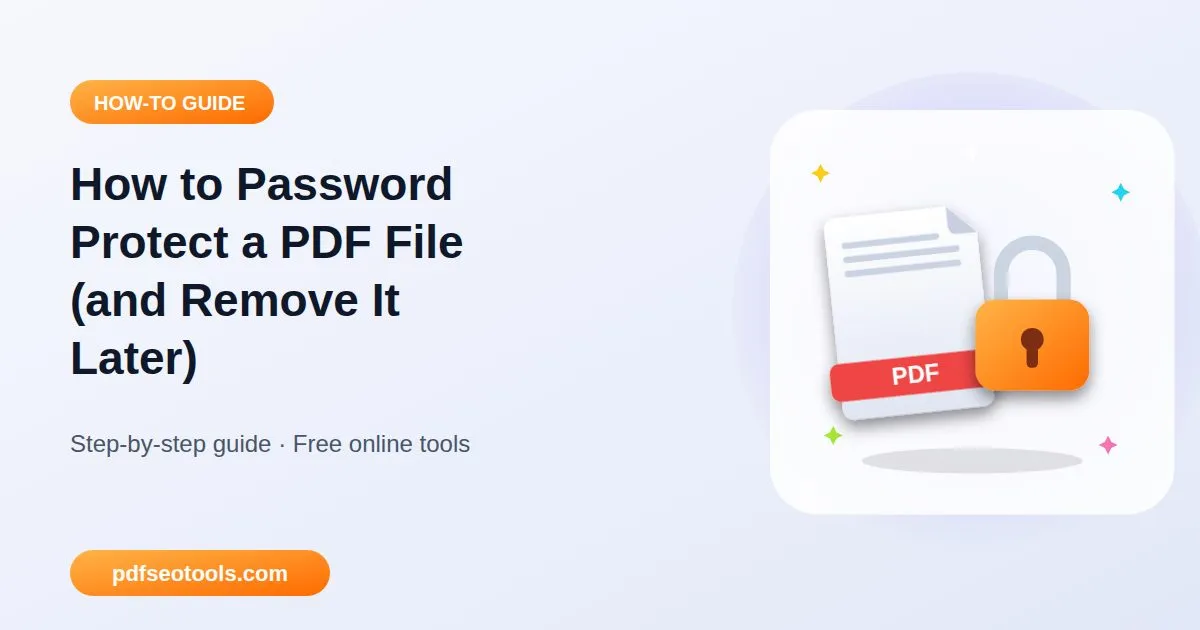
 Step 4
Sharp at every size
Copy, download or share your Image.
What You Can Do With the SVG Converter
The SVG Converter from PDF SEO Tools gives you the flexibility to handle many everyday tasks. Here are some of them:
Free and unlimited
Edit and convert images with the SVG Converter at no cost.
High-quality output
Smart processing keeps colours and details sharp.
Browser based
No Photoshop or desktop app is needed – it works in any browser.
Mobile friendly
Use it on Android and iPhone just as easily as on a PC.
Key Features of Our SVG Converter
The SVG Converter includes a variety of useful features. Some of the best ones include the following:
High-quality output
Smart processing keeps colours and details sharp.
Popular formats
Supports common formats like JPG, PNG, WEBP, SVG, GIF and more where relevant.
Free, No Sign-Up
Use the SVG Converter without an account or payment.
Private by Design
Files travel over HTTPS, are used only for your result and are removed by an automatic clean-up.
Benefits of the SVG Converter
Here are the benefits you can enjoy by using this free tool:
Making logos responsive
Creating icons for websites
Preparing files for cutting machines
Explore Other Free Tools
Frequently Asked Questions
Why use SVG?
SVG scales without losing quality and often has a small file size. That makes SVG the best choice for logos, icons and simple illustrations that must look crisp on every screen.
Which image formats does the SVG Converter support?
It works with the common web and camera formats used by most people, including JPG, PNG and WEBP, plus formats such as SVG, HEIC, AVIF, GIF or BMP where the tool needs them. The supported types are listed in the upload box.
Will my image lose quality?
Only as much as the chosen settings require. Lossless formats such as PNG keep every pixel, while JPG and WEBP use smart compression that is hard to notice on screen. Starting with a sharp, high-resolution image always gives the best result.
Is the SVG Converter safe and private?
Yes. Your files travel over a secure HTTPS connection, are used only to create your result and are deleted from our server automatically. You do not need an account, and the tool works the same way on phones, tablets and computers.
Is the SVG Converter free to use?
Yes. The SVG Converter on pdfseotools.com is free to use – no sign-up, no watermark and no hidden charges for everyday tasks.
Do I need to install software or create an account?
No. Everything runs in your web browser on Windows, Mac, Android and iPhone – there is nothing to download, nothing to install and no account to create.
Start Using the SVG Converter
Ready to try it? Scroll up to the SVG Converter, upload the image you want to turn into a vector or convert from SVG and see the result in seconds. Bookmark PDF SEO Tools to keep 150+ free tools for PDFs, images, text, SEO and development one tap away.
Something not working, or missing a feature you need? Tell our support team – we read every message.