
How to Format and Validate JSON Online (Step-by-Step Guide)

To format and validate json online, open the free JSON Formatter on pdfseotools.com, paste your code or data into the input box (or upload a file where supported), then run the tool and download or copy the result. It takes under a minute, works on mobile and desktop, and needs no sign-up.


What Is JSON Formatter and Why Use It?
A JSON formatter adds line breaks and indentation to compact JSON so it is easy to read and debug.
Format and pretty-print JSON with proper indentation online.
You can use it for tasks such as: reading api responses, cleaning config files, code reviews, documentation.
How to Format and Validate JSON Online – Step-by-Step
Follow these 4 simple steps. Each step takes only a few seconds.
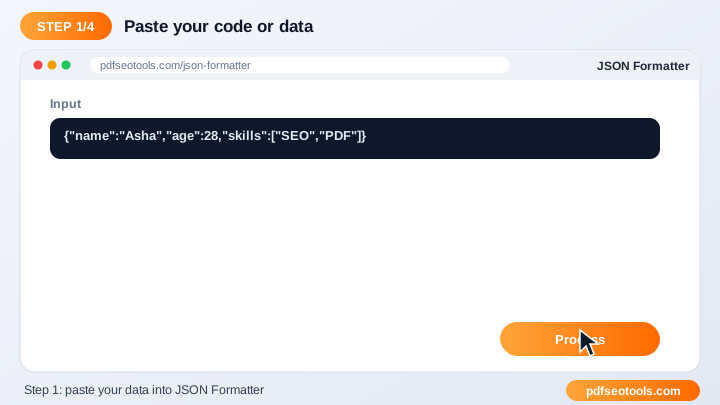
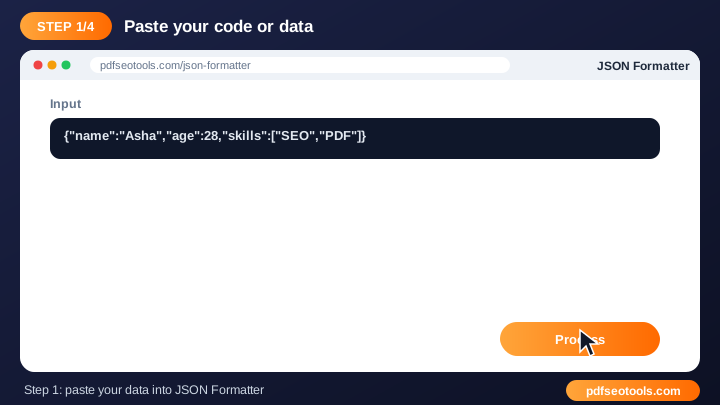
Step 1: Paste your code or data into the input box
Paste your code or data into the input box (or upload a file where supported). Make sure you use the original, best-quality input you have – a clean source always gives a cleaner result.
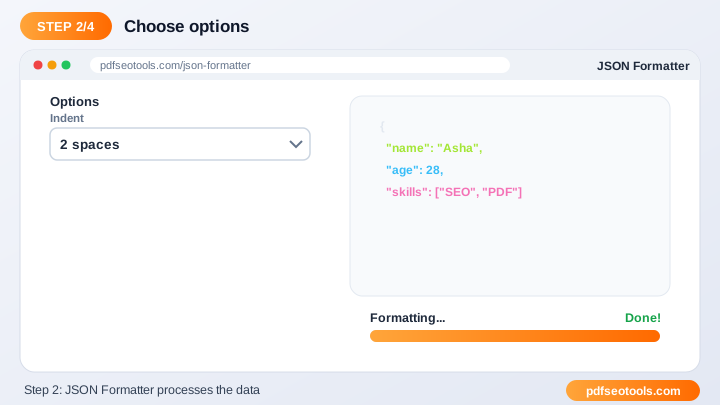
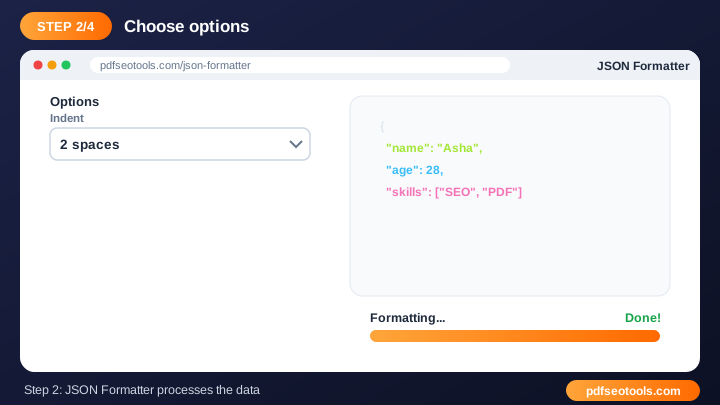
Step 2: Choose any options such as indentation
Choose any options such as indentation. The default settings work for most people, so change them only if you need a specific size, format or style.
Step 3: Click the action button
Click the action button. Processing usually takes a few seconds. Keep the browser tab open until the result appears.
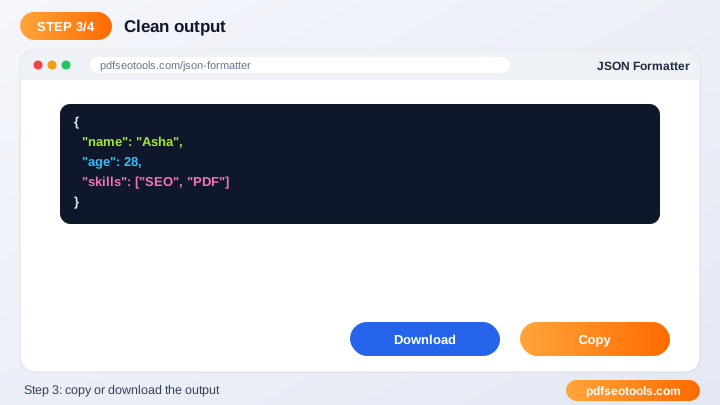
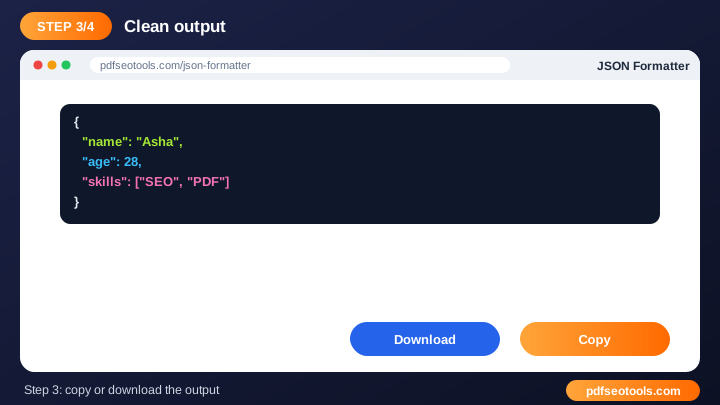
Step 4: Copy or download the output
Copy or download the output. Save the result with a descriptive file name so you can find it later, and keep your original as a backup.
When the result is ready you can download or copy it immediately. Try the JSON Formatter now and see how quickly it works.
Online JSON Formatter vs Other Methods
The table below compares doing the job by hand, with desktop software and with a free online tool.
| Criteria | Manual method | Desktop software | JSON Formatter |
|---|---|---|---|
| Cost | Your time | Often paid | Free |
| Installation | None | Required | None |
| Works on mobile | Difficult | Limited | Yes |
| Learning curve | High | Medium | Low |
| Speed | Slow | Medium | Seconds |
Key Features to Look For
- Developer friendly: Clean output that is ready to use in code.
- Error detection: Highlights invalid input so you can fix it quickly.
- Fast: Processes data instantly in the browser or on our server.
- Free: Use the JSON Formatter without an account.
- Works everywhere: No IDE or plugin required.
- Privacy: Your data is not shared or published.
Common Problems and How to Fix Them
Parse error
Check for missing commas, quotes or brackets near the line mentioned in the error.
Special characters break the output
Make sure the input uses UTF-8 encoding.
Output is too large to read
Use the collapse or formatting options, or process a smaller part of the data.
Mistakes to Avoid
- Using single quotes in JSON instead of double quotes.
- Leaving a trailing comma after the last item.
- Pasting secrets such as API keys into shared snippets.
- Using placeholder data in production.
Tips for Best Results
- Validate data before using it in production.
- Keep sensitive keys and passwords out of shared snippets.
- Use consistent indentation across your project.
- Bookmark the tool for daily debugging.
Related Tasks You Can Do
JSON Validator
A JSON validator checks whether your JSON follows the correct syntax and points out problems like missing commas, quotes or brackets. It is useful for debugging api payloads, checking config files, fixing parse errors. Try JSON Validator.
JSON Viewer
A JSON viewer makes large or minified JSON readable by showing it as a structured tree you can expand and collapse. It is useful for inspecting api responses, debugging apps, learning data structures. Try JSON Viewer.
JSON Editor
A JSON editor lets you add, change and remove keys and values while keeping valid JSON syntax. It is useful for editing config files, creating test data, updating api payloads. Try JSON Editor.
Worked Example
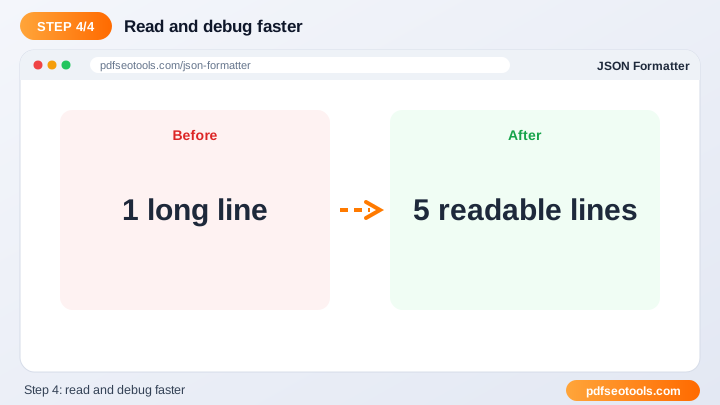
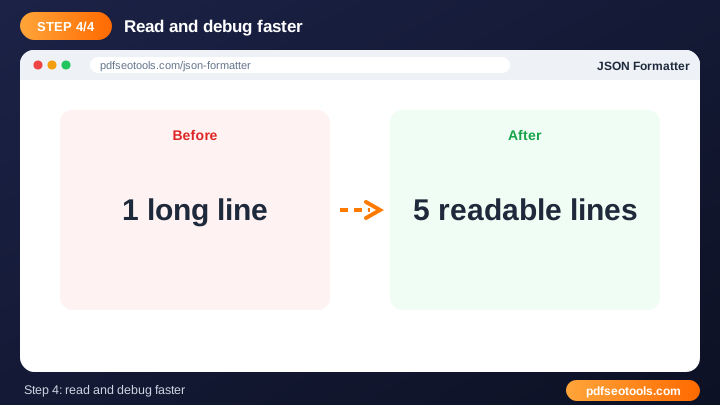
Example: an API returns one long line of JSON and the app crashes. Pasting it into a JSON Validator reveals a trailing comma on line 1; after removing it, the formatter shows clean, indented data that is easy to debug.
Quick Reference Table
| Feature | JSON | XML |
|---|---|---|
| Syntax | Key–value pairs, arrays | Nested tags |
| Readability | Compact | Verbose |
| Comments | Not allowed | Allowed |
| Common use | Web APIs, configs | Feeds, sitemaps, legacy APIs |
Glossary of Key Terms
- JSON
- JavaScript Object Notation – a lightweight data format of keys and values.
- XML
- Extensible Markup Language – a tag-based data format.
- Validation
- Checking that data follows the correct syntax rules.
- Minify
- Removing spaces and line breaks to make data smaller.
- UUID
- A 128-bit identifier that is practically unique.
Best Practices
Validate data before using it, never paste secrets such as API keys into shared tools or snippets, keep consistent indentation in your project and use generated test data only in development.
Key Takeaways
- To format and validate json online, open the free JSON Formatter on pdfseotools.com, paste your code or data into the input box (or upload a file where supported), then run the tool and download or copy the result.
- Validate data before using it in production.
- Keep sensitive keys and passwords out of shared snippets.
- Use the free JSON Formatter to get the job done in seconds.
Related Free Tools
- JSON Validator – Validate JSON online and find syntax errors quickly.
- JSON Viewer – View JSON data in a clear, collapsible tree format.
- JSON Editor – Edit JSON data online with a simple, structured editor.
Explore all Free Developer Tools on pdfseotools.com.
Frequently Asked Questions
Does it change my data?
No, only whitespace changes.
Can it minify JSON?
Use the available option to compact JSON.
Is it free?
Yes.
Is it free to use?
Yes. All tools mentioned in this guide are free on pdfseotools.com, with no sign-up and no installation.
Does it work on mobile?
Yes. The tools work in Chrome, Safari, Firefox and Edge on Android, iPhone, Windows and Mac.
Conclusion
How to Format and Validate JSON Online is quick and easy with the right tool. Bookmark the JSON Formatter and explore more developer tools to finish your work faster – free, secure and on any device.