How to Convert iPhone HEIC Photos to JPG

To convert iphone heic photos to jpg, open the free HEIC to JPG on pdfseotools.com, upload your image by clicking the upload box or dragging the file onto it, then run the tool and download or copy the result. It takes under a minute, works on mobile and desktop, and needs no sign-up.
What Is HEIC to JPG and Why Use It?
HEIC is the default photo format on iPhones. It saves space, but many computers and websites cannot open it. Converting HEIC to JPG makes your photos compatible everywhere.
Convert iPhone HEIC photos to JPG online so they open on Windows, Android and any website. No app needed.
You can use it for tasks such as: opening iphone photos on windows, uploading photos to websites and forms, sharing pictures with android users, editing photos in any app.
How to Convert iPhone HEIC Photos to JPG – Step-by-Step
Follow these 4 simple steps. Each step takes only a few seconds.
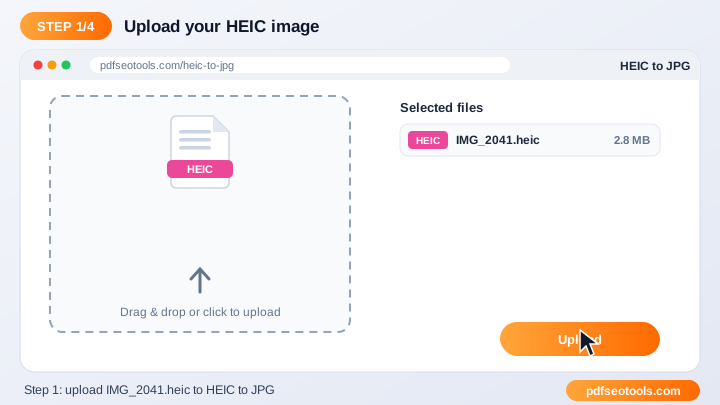
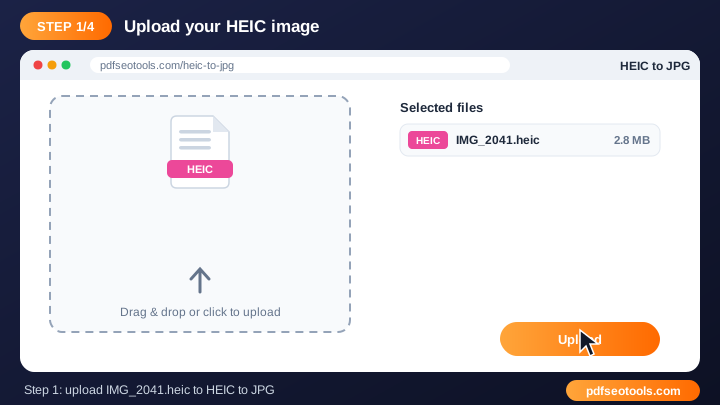
Step 1: Upload your image by clicking the upload box or dragging the file onto
Upload your image by clicking the upload box or dragging the file onto it. Make sure you use the original, best-quality input you have – a clean source always gives a cleaner result.
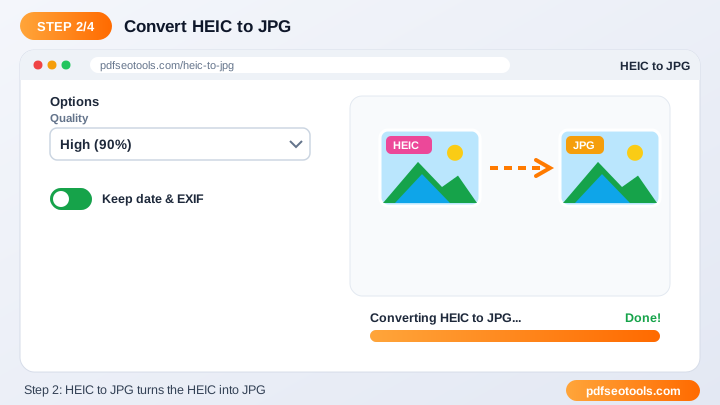
Step 2: Adjust the available settings such as size
Adjust the available settings such as size, quality or output format. The default settings work for most people, so change them only if you need a specific size, format or style.
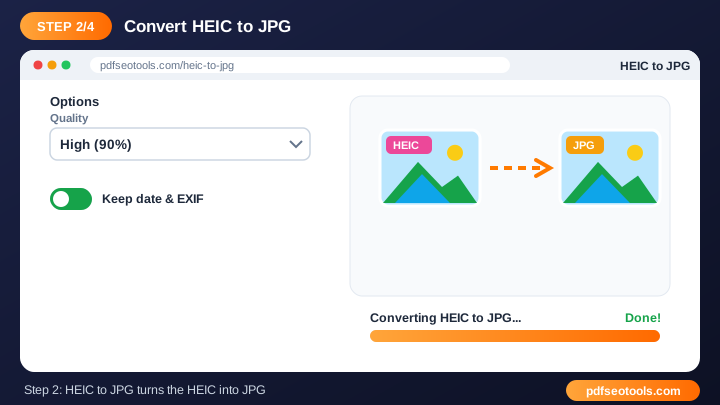
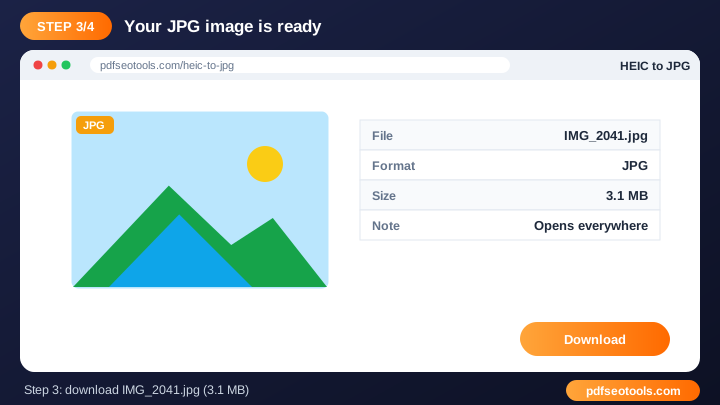
Step 3: Click the action button to start processing
Click the action button to start processing. Processing usually takes a few seconds. Keep the browser tab open until the result appears.
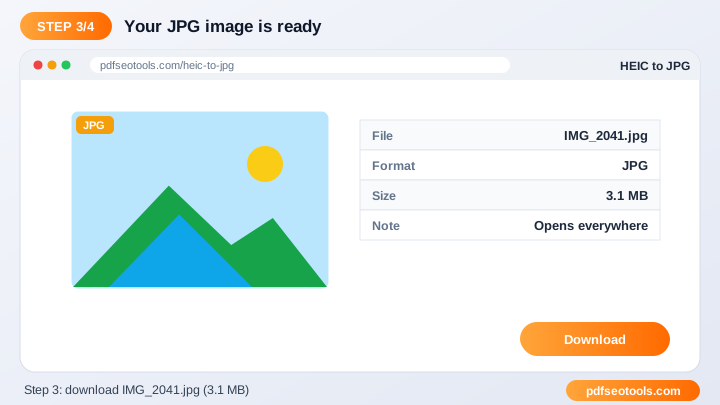
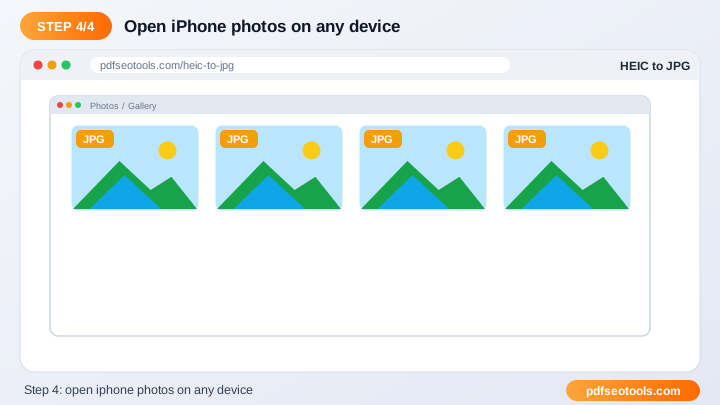
Step 4: Preview the result
Preview the result and download the new image to your device. Save the result with a descriptive file name so you can find it later, and keep your original as a backup.
When the result is ready you can download or copy it immediately. Try the HEIC to JPG now and see how quickly it works.
Online HEIC to JPG vs Other Methods
The table below compares doing the job by hand, with desktop software and with a free online tool.
| Criteria | Manual method | Desktop software | HEIC to JPG |
|---|---|---|---|
| Cost | Your time | Often paid | Free |
| Installation | None | Required | None |
| Works on mobile | Difficult | Limited | Yes |
| Learning curve | High | Medium | Low |
| Speed | Slow | Medium | Seconds |
Key Features to Look For
- Free and unlimited: Edit and convert images with the HEIC to JPG at no cost.
- High-quality output: Smart processing keeps colours and details sharp.
- Browser based: No Photoshop or desktop app is needed – it works in any browser.
- Mobile friendly: Use it on Android and iPhone just as easily as on a PC.
- Privacy first: Your images are not shared and are cleared from our server after use.
- Popular formats: Supports common formats like JPG, PNG, WEBP, SVG, GIF and more where relevant.
Common Problems and How to Fix Them
Image will not upload
Make sure the format is supported and the file is not damaged; very large images may need to be resized first.
Result looks blurry
Start from a higher-resolution image and avoid enlarging small images too much.
Transparent background turned white
Choose PNG or WEBP output, because JPG does not support transparency.
Mistakes to Avoid
- Starting from a small, low-quality image and expecting a sharp result.
- Saving photos as PNG when a smaller JPG or WEBP would do.
- Stretching an image by not keeping the aspect ratio.
- Forgetting to add alt text when publishing images on a website.
Tips for Best Results
- Start with the highest-resolution image you have.
- Use WEBP or compressed JPG for websites to improve page speed.
- Use PNG when you need a transparent background.
- Add descriptive file names and alt text when you upload images to your site for better image SEO.
Related Tasks You Can Do
HEIC to PNG
HEIC is the default photo format on iPhones. It saves space, but many computers and websites cannot open it. Converting HEIC to PNG makes your photos compatible everywhere. It is useful for opening iphone photos on windows, uploading photos to websites and forms, sharing pictures with android users. Try HEIC to PNG.
JPG Converter
JPG is the most compatible image format in the world. Converting other formats to JPG ensures your pictures open on every phone, website and app. It is useful for making images compatible everywhere, reducing file sizes, preparing photos for upload forms. Try JPG Converter.
Image Compressor
Image compression removes unnecessary data from image files. Smaller images load faster, which improves Core Web Vitals, user experience and SEO rankings. It is useful for speeding up websites, meeting upload size limits, saving phone storage. Try Image Compressor.
Worked Example
Example: a 5 MB photo from a phone is uploaded to a blog post and slows the page down. Resizing it to 1200 px wide and converting it to WEBP can reduce it to well under 200 KB while it still looks sharp on screen, which makes the page load noticeably faster.
Quick Reference Table
| Format | Compression | Transparency | Best for |
|---|---|---|---|
| JPG | Lossy | No | Photos |
| PNG | Lossless | Yes | Screenshots, logos |
| WEBP | Lossy or lossless | Yes | Websites |
| SVG | Vector | Yes | Logos and icons |
| HEIC | Lossy (efficient) | Yes | iPhone photos |
| AVIF | Lossy (very efficient) | Yes | Modern websites |
Glossary of Key Terms
- Resolution
- The number of pixels in an image, for example 1920 × 1080.
- Lossy compression
- Removes some image data to make files smaller (JPG, lossy WEBP).
- Lossless compression
- Shrinks files without losing any image data (PNG).
- Aspect ratio
- The relationship between width and height, such as 16:9 or 1:1.
- Alt text
- A short text description of an image used by screen readers and search engines.
Best Practices
Resize images to the largest size they will actually be displayed, choose WEBP or compressed JPG for photos, PNG or SVG for logos, and always add descriptive file names and alt text. Keep the original high-resolution file in case you need to print it later.
Key Takeaways
- To convert iphone heic photos to jpg, open the free HEIC to JPG on pdfseotools.com, upload your image by clicking the upload box or dragging the file onto it, then run the tool and download or copy the result.
- Start with the highest-resolution image you have.
- Use WEBP or compressed JPG for websites to improve page speed.
- Use the free HEIC to JPG to get the job done in seconds.
Related Free Tools
- HEIC to PNG – Convert iPhone HEIC photos to PNG online so they open on Windows, Android and any website.
- JPG Converter – Convert images from PNG, WEBP, GIF, BMP and more into JPG format online.
- Image Compressor – Compress JPG, PNG and WEBP images online without visible quality loss.
Explore all Free Online Image Tools on pdfseotools.com.
Frequently Asked Questions
Why can't I open HEIC files?
Many older systems and websites do not support HEIC.
Is quality lost when converting to JPG?
Photos keep excellent visual quality.
Can I convert several photos?
Yes, convert your photos one after another quickly.
Is it free to use?
Yes. All tools mentioned in this guide are free on pdfseotools.com, with no sign-up and no installation.
Does it work on mobile?
Yes. The tools work in Chrome, Safari, Firefox and Edge on Android, iPhone, Windows and Mac.
Conclusion
How to Convert iPhone HEIC Photos to JPG is quick and easy with the right tool. Bookmark the HEIC to JPG and explore more image tools to finish your work faster – free, secure and on any device.