Text To Image
Convert text into an image online. Create quote images, social posts and simple graphics from any text in seconds. Key features: free and unlimited, high-quality output and browser based. It is 100% free, works on mobile and desktop and needs no sign-up – just open the tool and start now. Simply add your input, click the button and get your result in seconds.
Share on Social Media:


Text To Image is a free online text to image by 𝐏ᴅꜰ𝐒ᴇᴏ𝐓ᴏᴏʟ𝐬.𝐂ᴏᴍ. Convert text into an image online. Create quote images, social posts and simple graphics from any text in seconds.
In short: add your Text, click the button and get your Image in seconds. It works in any browser on mobile and desktop, with no sign-up and no software to install.
How to Use Text To Image (4 Quick Steps)
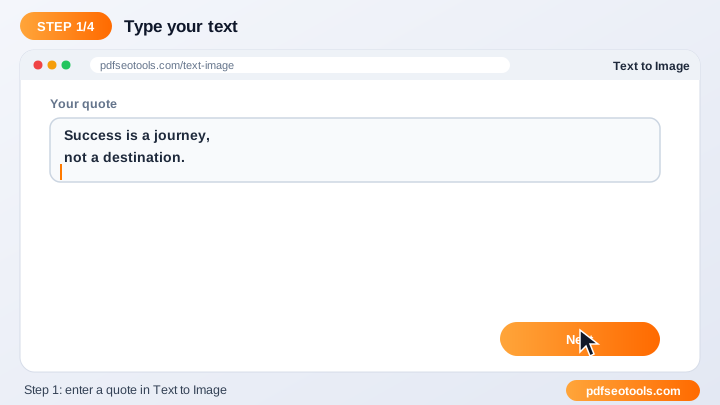
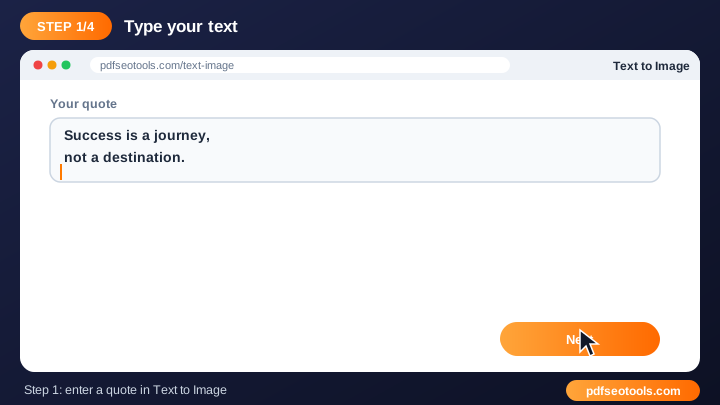
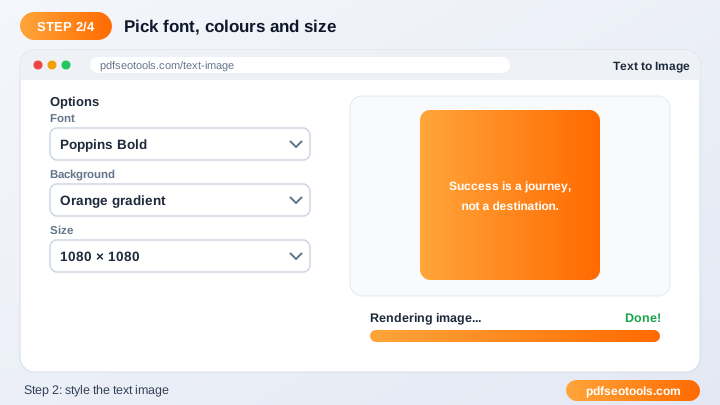
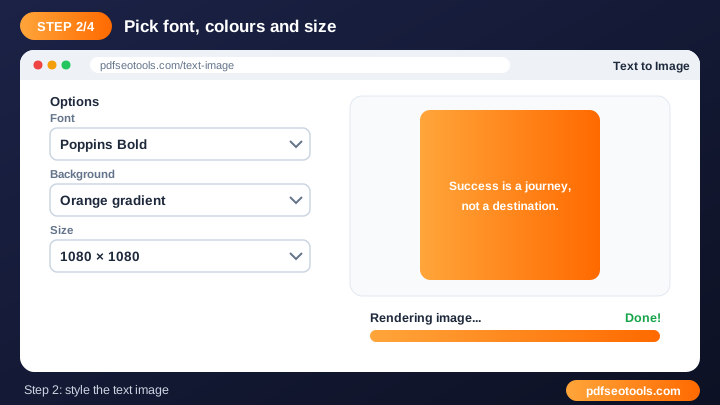
To use the Text To Image, follow these 4 simple steps:
- Step 1: Upload your image by clicking the upload box or dragging the file onto it.
- Step 2: Adjust the available settings such as size, quality or output format.
- Step 3: Click the action button to start processing.
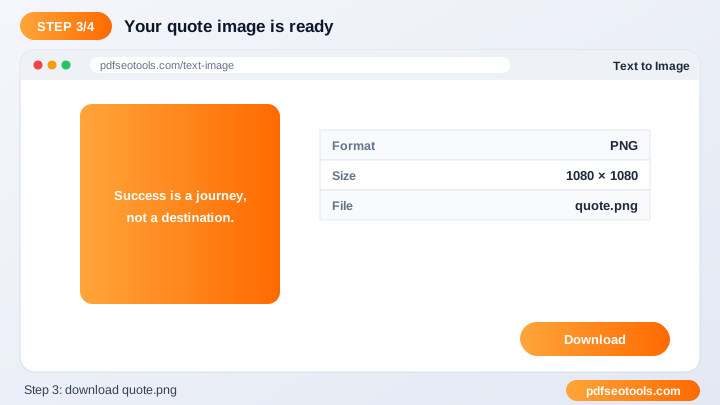
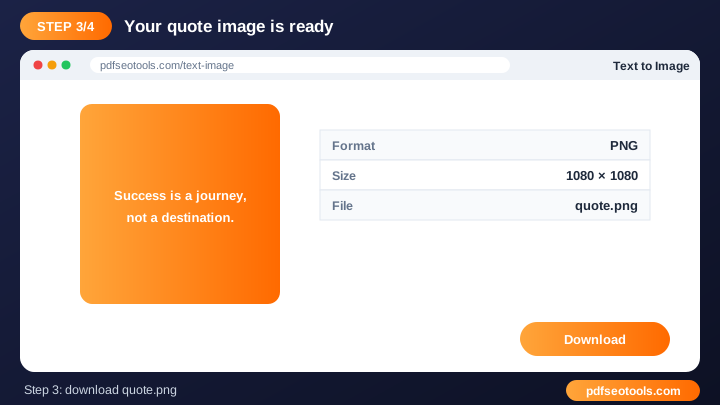
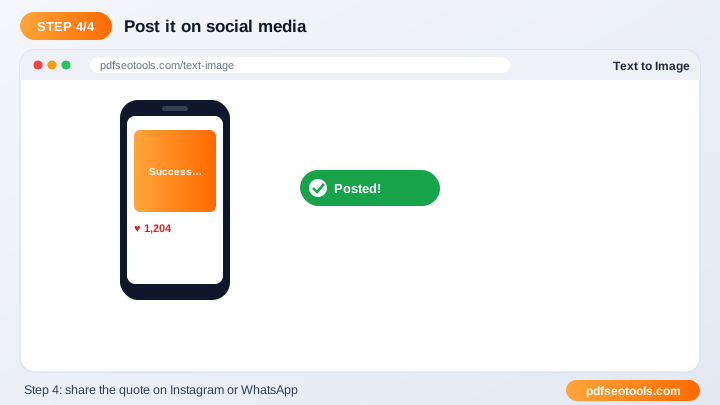
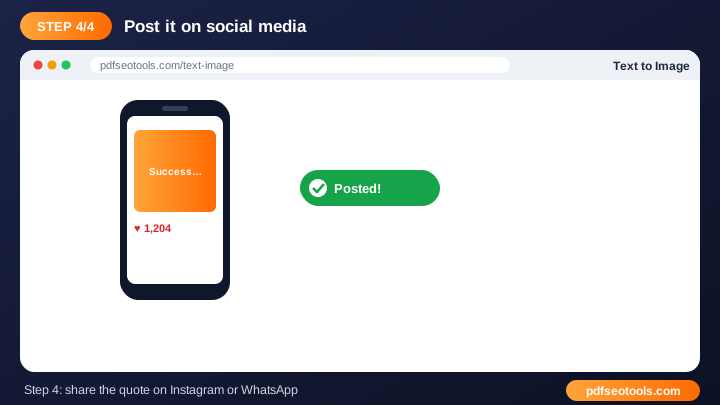
- Step 4: Preview the result and download the new image to your device.
What is Text To Image?
Text To Image is a browser-based image tool that turns Text into Image without installing any software. Text to Image turns words into a picture file. Images with text stand out on social media and can be shared where plain text cannot be styled.
Text To Image – Quick Facts
| Feature | Details |
|---|---|
| Tool type | Free online text to image |
| Input | Text |
| Output | Image |
| Price | Free – no hidden charges |
| Sign-up required | No |
| Installation | Not required (works in the browser) |
| Supported devices | Windows, macOS, Linux, Android and iPhone |
| Connection | Secure HTTPS |
| Steps to finish | 4 |
How Does Text To Image Work?
The tool reads the pixels and metadata of your image, applies the selected operation – such as conversion, resizing or compression – and encodes a new image file in the chosen format. Colour profiles and dimensions are handled automatically so the result is ready to use.
Key Features of Text To Image
- Free and unlimited: Edit and convert images with the Text To Image at no cost.
- High-quality output: Smart processing keeps colours and details sharp.
- Browser based: No Photoshop or desktop app is needed – it works in any browser.
- Mobile friendly: Use it on Android and iPhone just as easily as on a PC.
- Privacy first: Your images are not shared and are cleared from our server after use.
- Popular formats: Supports common formats like JPG, PNG, WEBP, SVG, GIF and more where relevant.
Text To Image Analytics: Online Tool vs Other Methods
An online text to image is faster to start than manual work or desktop software, because there is nothing to download, install or update. The table below summarises the difference.
| Criteria | Manual method | Desktop software | Text To Image |
|---|---|---|---|
| Cost | Your time | Often paid | Free |
| Installation | None | Required | None |
| Works on mobile | Difficult | Limited | Yes |
| Learning curve | High | Medium | Low |
| Updates | — | Manual | Automatic |
Who Uses Text To Image? (Common Use Cases)
Students, bloggers, office workers, business owners and developers use this free image tool for tasks like:
- Creating quote posts
- Making status images
- Designing simple banners
- Protecting text from easy copying
Common Problems and How to Fix Them
Image will not upload
Make sure the format is supported and the file is not damaged; very large images may need to be resized first.
Result looks blurry
Start from a higher-resolution image and avoid enlarging small images too much.
Transparent background turned white
Choose PNG or WEBP output, because JPG does not support transparency.
Tips for Best Results
- Start with the highest-resolution image you have.
- Use WEBP or compressed JPG for websites to improve page speed.
- Use PNG when you need a transparent background.
- Add descriptive file names and alt text when you upload images to your site for better image SEO.
Common Mistakes to Avoid
- Starting from a small, low-quality image and expecting a sharp result.
- Saving photos as PNG when a smaller JPG or WEBP would do.
- Stretching an image by not keeping the aspect ratio.
- Forgetting to add alt text when publishing images on a website.
Why Use Text To Image on 𝐏ᴅꜰ𝐒ᴇᴏ𝐓ᴏᴏʟ𝐬.𝐂ᴏᴍ?
𝐏ᴅꜰ𝐒ᴇᴏ𝐓ᴏᴏʟ𝐬.𝐂ᴏᴍ gives you a fast, private and free text to image with a clean interface and no sign-up. The page is mobile friendly, loads quickly and sits next to many related PDF, image, text and SEO tools, so you can finish your whole workflow in one place.
Related Free Tools
- Jpg Converter – free online jpg converter
- Favicon Generator – free online favicon generator
- Image Compressor – free online image compressor
- Image Resizer – free online image resizer
- Meme Generator – free online meme generator
- WEBP to PNG Converter – free online webp to png
Need Help? Website Support
If the Text To Image does not work as expected, refresh the page, use the latest Chrome, Edge, Firefox or Safari, and check that your input is correct. Still need help or want to suggest a new feature? Contact the 𝐏ᴅꜰ𝐒ᴇᴏ𝐓ᴏᴏʟ𝐬.𝐂ᴏᴍ support team.
Frequently Asked Questions (FAQ)
Can I change the font or colour?
Use the options available on the tool to style your image.
Which format is the output?
You can download it as an image file.
Is it free?
Yes.
Is the Text To Image safe to use?
Yes. 𝐏ᴅꜰ𝐒ᴇᴏ𝐓ᴏᴏʟ𝐬.𝐂ᴏᴍ uses a secure HTTPS connection, and files or text you submit are processed only to give you the result. Uploaded files are removed automatically.
Do I need to create an account to use the Text To Image?
No. You can use the Text To Image for free without registration. Simply open the page and start using it.
Does the Text To Image work on mobile phones?
Yes. The tool is fully responsive and works in Chrome, Safari, Firefox, Edge and other browsers on Android, iPhone, Windows and Mac.
Conclusion
The Text To Image is a quick, free and secure way to turn Text into Image. Bookmark this page so the text to image is always one tap away, and share it with anyone who needs it.