Word To PDF
Convert DOC and DOCX files into professional PDF documents online in a few seconds. Our Word to PDF converter keeps your fonts, tables, images and page layout exactly as you designed them. Key features: 100% free, fast cloud processing and keeps original quality. Files are processed over secure HTTPS and deleted automatically. 100% free with no sign-up – upload your file and start now.
Share on Social Media:
Word To PDF is a free online word to pdf converter by PDF SEO Tools. Convert DOC and DOCX files into professional PDF documents online in a few seconds. Our Word to PDF converter keeps your fonts, tables, images and page layout exactly as you designed them.
In short: add your Word, click the button and get your PDF in seconds. It works in any browser on mobile and desktop, with no sign-up and no software to install.
How to Use Word To PDF (4 Quick Steps)
To use the Word To PDF, follow these 4 simple steps:
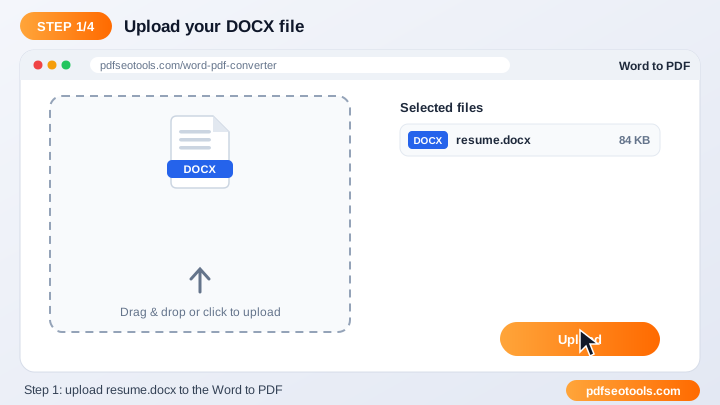
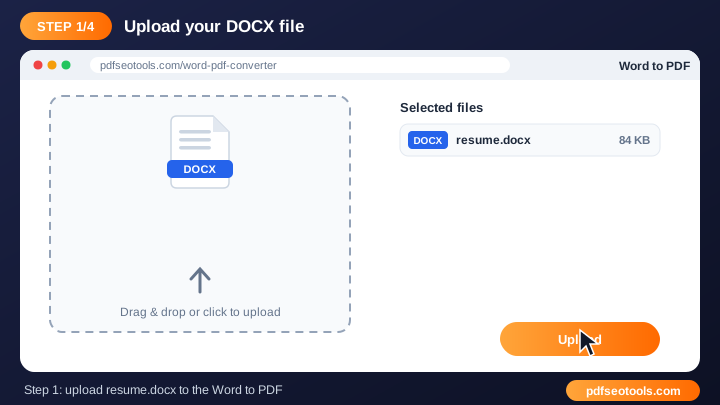
- Step 1: Click the upload area or drag and drop your file into the Word To PDF box.
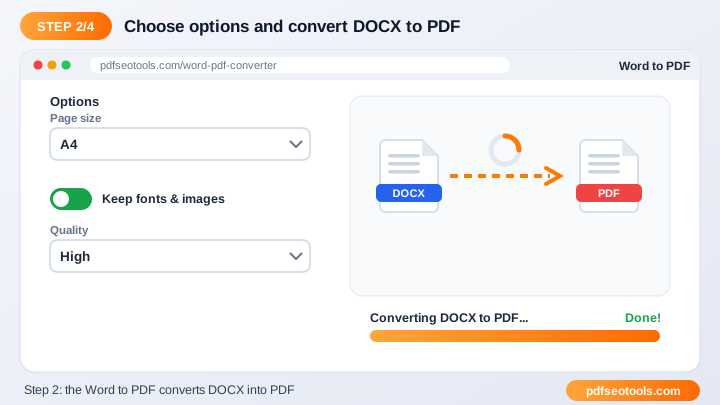
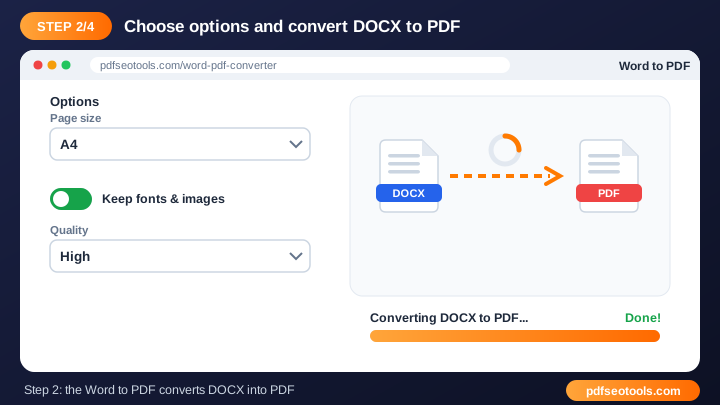
- Step 2: Check the file name and choose any available options (page order, quality, password or watermark text where offered).
- Step 3: Press the convert / process button and wait a few seconds while our server handles the file.
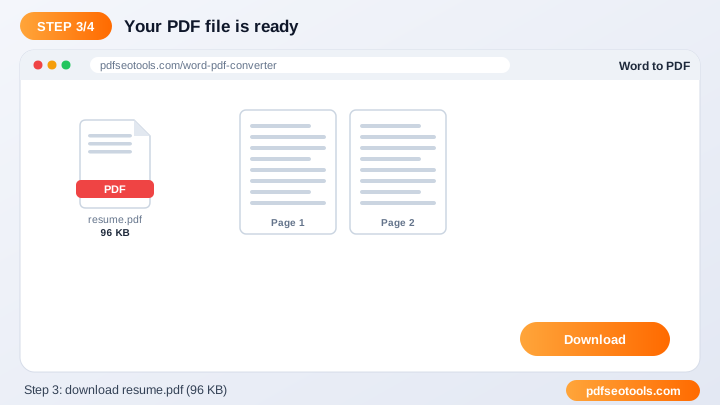
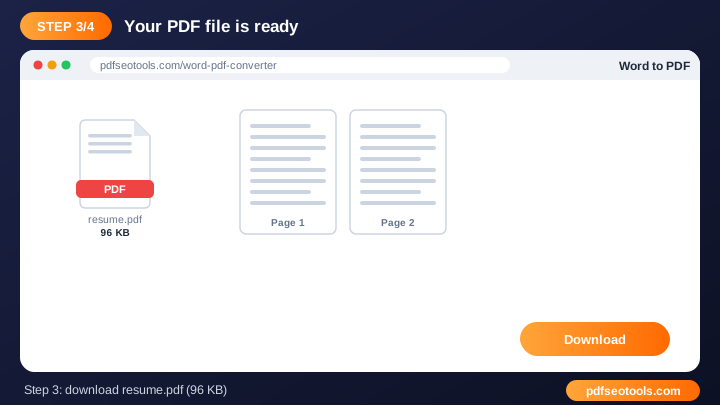
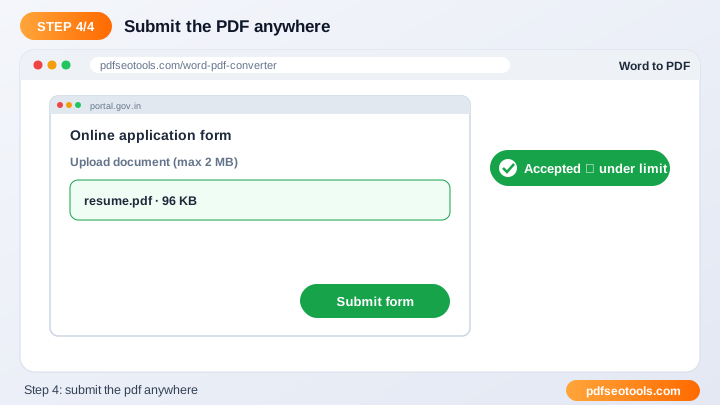
- Step 4: Download the finished file to your device. Uploaded files are deleted automatically after processing.
What is Word To PDF?
Word To PDF is a browser-based PDF tool that turns Word into PDF without installing any software. Word to PDF conversion turns an editable Microsoft Word file into a fixed-layout PDF that looks the same on every phone, computer and printer. PDF is the preferred format for resumes, invoices, assignments and official forms because it cannot be changed accidentally.
Word To PDF – Quick Facts
| Feature | Details |
|---|---|
| Tool type | Free online word to pdf converter |
| Input | Word |
| Output | |
| Price | Free – no hidden charges |
| Sign-up required | No |
| Installation | Not required (works in the browser) |
| Supported devices | Windows, macOS, Linux, Android and iPhone |
| Connection | Secure HTTPS |
| Steps to finish | 4 |
How Does Word To PDF Work?
When you upload a file, it is sent over an encrypted HTTPS connection to our conversion server. The server reads the document structure (pages, text, images and fonts), applies the operation you selected, writes a new file and gives you a download link. The temporary files are then deleted automatically.
Key Features of Word To PDF
- 100% free: Use the Word To PDF without paying, without a watermark from us and without creating an account.
- Fast cloud processing: Files are processed on our servers, so the speed does not depend on your phone or computer.
- Keeps original quality: Text, images, fonts and layout are preserved as closely as the source file allows.
- Works on every device: Windows, macOS, Linux, Android and iPhone – any modern browser is enough.
- Secure and private: Connections use HTTPS and uploaded files are removed from the server after processing.
- No software install: Everything runs online, so there is nothing to download or update.
Word To PDF Analytics: Online Tool vs Other Methods
An online word to pdf converter is faster to start than manual work or desktop software, because there is nothing to download, install or update. The table below summarises the difference.
| Criteria | Manual method | Desktop software | Word To PDF |
|---|---|---|---|
| Cost | Your time | Often paid | Free |
| Installation | None | Required | None |
| Works on mobile | Difficult | Limited | Yes |
| Learning curve | High | Medium | Low |
| Updates | — | Manual | Automatic |
Who Uses Word To PDF? (Common Use Cases)
Students, bloggers, office workers, business owners and developers use this free PDF tool for tasks like:
- Sending a resume or CV to employers
- Submitting school and college assignments
- Sharing invoices, quotations and contracts
- Printing documents without layout shifts
Common Problems and How to Fix Them
Upload fails or stops
Check your internet connection and make sure the file is a valid, non-corrupted PDF or document under the size limit shown on the page.
The file is password protected
Remove the password first with our Unlock PDF tool (only for files you own), then try again.
Output looks different from the original
Use the original source file instead of a scanned copy and make sure fonts are embedded in the source document.
Tips for Best Results
- Use clear, original files – a sharp source always gives a cleaner result.
- Keep very large documents under the upload limit shown on the page, or split them first.
- Rename the downloaded file with a descriptive name so it is easy to find later.
- Always keep a backup copy of important original documents.
Common Mistakes to Avoid
- Uploading a password-protected file without unlocking it first.
- Using a blurry photo or low-resolution scan as the source.
- Closing the browser tab before the download finishes.
- Uploading a file larger than the limit shown on the page.
Why Use Word To PDF on PDF SEO Tools?
PDF SEO Tools gives you a fast, private and free word to pdf converter with a clean interface and no sign-up. The page is mobile friendly, loads quickly and sits next to many related PDF, image, text and SEO tools, so you can finish your whole workflow in one place.
Related Free Tools
- Text To PDF – free online text to pdf
- Merge PDF – free online merge pdf files
- Organize PDF – free online organize pdf pages
- PDF to ZIP – free online pdf to zip
- Watermark PDF – free online add watermark to pdf
- Lock PDF – free online password protect pdf
Need Help? Website Support
If the Word To PDF does not work as expected, refresh the page, use the latest Chrome, Edge, Firefox or Safari, and check that your input is correct. Still need help or want to suggest a new feature? Contact the PDF SEO Tools support team.
Frequently Asked Questions (FAQ)
Will my formatting change after conversion?
No. Headings, fonts, tables, images and margins are kept as in the original Word file.
Can I convert DOC as well as DOCX?
Yes, both the older DOC and the newer DOCX formats are supported.
Do I need Microsoft Word installed?
No. The conversion happens online, so you only need a browser.
Is the Word To PDF safe to use?
Yes. PDF SEO Tools uses a secure HTTPS connection, and files or text you submit are processed only to give you the result. Uploaded files are removed automatically.
Do I need to create an account to use the Word To PDF?
No. You can use the Word To PDF for free without registration. Simply open the page and start using it.
Does the Word To PDF work on mobile phones?
Yes. The tool is fully responsive and works in Chrome, Safari, Firefox, Edge and other browsers on Android, iPhone, Windows and Mac.
Conclusion
The Word To PDF is a quick, free and secure way to turn Word into PDF. Bookmark this page so the word to pdf converter is always one tap away, and share it with anyone who needs it.